---
title: Library
description: Library of the tour
---
[Skip to content](https://info.treedis.com/help.center/library#main-content)
English
Show submenu for translations
Open main navigation
Close main navigation
- English
Show submenu for translations
- [Go to treedis.com](https://www.treedis.com/)
[Go to treedis.com](https://www.treedis.com/)
This is a search field with an auto-suggest feature attached.
- There are no suggestions because the search field is empty.
1. [Help Center](https://info.treedis.com/help.center)
2. [Manage](https://info.treedis.com/help.center/manage)
# Library
The Treedis **Library** is your central place for managing project files, images, and documents, as well as configuring your tour's thumbnail photo. [Click here to learn how to set up a thumbnail.](https://info.treedis.com/help.center/can-i-change-the-main-tour-image)
To upload files or structure your library, click the **+ Add** button in the top-right corner.
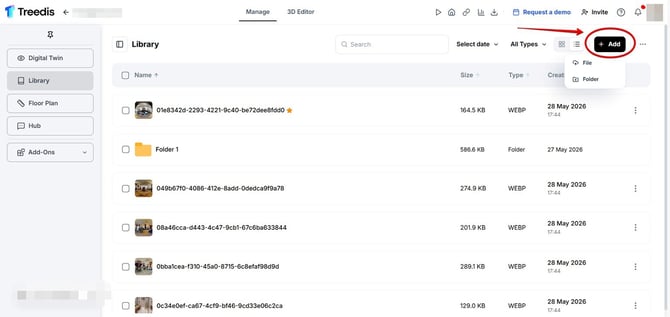
You will see two options:
- ***File*** - upload individual images, media files, or documents directly from your computer.
- ***Folder*** - create a new folder to organize files according to your needs.
Clicking the three dots icon (•••) next to the **Add** button gives you access to advanced integrations and automation tools:
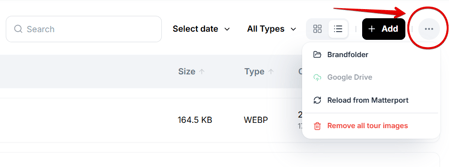
- Connect services like **Brandfolder** or **Google Drive** (coming soon) to import external assets directly into your project.
- **Reload from Matterport** - automatically sync and pull the latest media assets from your linked Matterport tour.
- **Remove all tour images** - clear all current images from the library in one action.
For large projects with many files, you can use the built-in tools to find specific assets quickly:
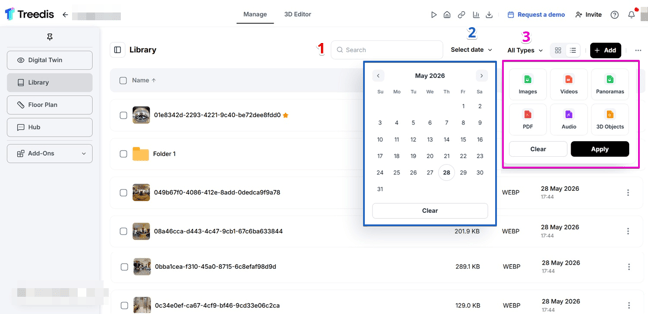
**1. Search bar** - to find the needed assets instantly.
**2. Date range filter** - filter assets based on the date they were uploaded.
**3. Format Filter (All Types)** - use this dropdown menu to filter files by media type. Select your required formats and click *Apply*, or select *Clear* to reset your view.
The **Hierarchy** sidebar panel can be opened using the toggle on the left. It displays a tree view of all folders and files, allowing you to see exactly where assets are stored without opening folders one by one.
Inside the Hierarchy tree view, you can also organize files by using **drag and drop**. Simply click and hold a file to move it into your desired folder.
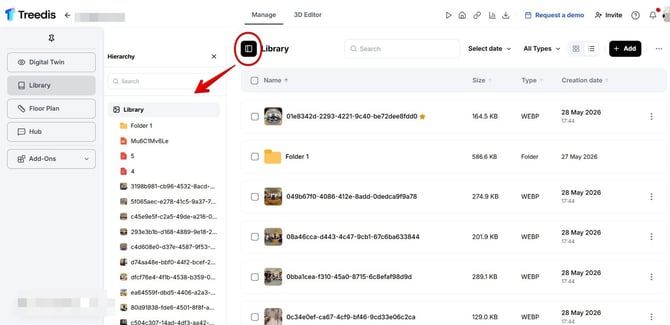
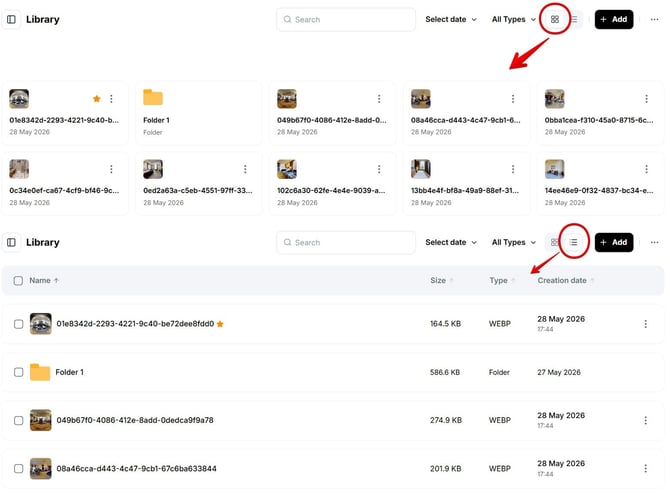
You can also choose the layout that works best for your library by toggling between **Grid** or **List** view depending on your preference.
---
If you have further questions or need assistance with the settings, please contact us at [support@treedis.com](mailto:support@treedis.com)
- [Workspace NEW](https://info.treedis.com/help.center/workspace-new)
- [3D Editor](https://info.treedis.com/help.center/3d-editor#main-content)
- [Interface](https://info.treedis.com/help.center/3d-editor#interface)
- [Intro Screen](https://info.treedis.com/help.center/3d-editor#intro-screen)
- [3D Scans](https://info.treedis.com/help.center/3d-editor#3d-scans)
- [Burger Menu](https://info.treedis.com/help.center/3d-editor#burger-menu)
- [Highlight Reel](https://info.treedis.com/help.center/3d-editor#highlight-reel)
- [Map](https://info.treedis.com/help.center/3d-editor#map)
- [Panorama](https://info.treedis.com/help.center/3d-editor#panorama)
- [Tags](https://info.treedis.com/help.center/3d-editor#tags)
- [Polygons](https://info.treedis.com/help.center/3d-editor#polygons)
- [Measurements Feature](https://info.treedis.com/help.center/3d-editor#measurements-feature)
- [Media / Vimeo / Green Screen](https://info.treedis.com/help.center/3d-editor#media-vimeo-green-screen)
- [Giphy / Sketchfab](https://info.treedis.com/help.center/3d-editor#giphy-sketchfab)
- [Virtual Staging / Avatars](https://info.treedis.com/help.center/3d-editor#virtual-staging-avatars)
- [FAQ](https://info.treedis.com/help.center/faq)
- [Manage](https://info.treedis.com/help.center/manage)
- [IoT Integrations](https://info.treedis.com/help.center/iot-integrations)
- [Analytics](https://info.treedis.com/help.center/analytics)
- [Treedis AI](https://info.treedis.com/help.center/treedis-ai)
- [Work Requests (Notes)](https://info.treedis.com/help.center/work-requests-notes)
- [White Label](https://info.treedis.com/help.center/white-label)
- [Flows](https://info.treedis.com/help.center/flows)
- [Navigation](https://info.treedis.com/help.center/navigation)
- [Experience Creator \*](https://info.treedis.com/help.center/experience-creator)
- [VR (Virtual Reality)](https://info.treedis.com/help.center/vr-virtual-reality)
- [AR (Augmented Reality)](https://info.treedis.com/help.center/ar-augmented-reality)
- [HUB \*](https://info.treedis.com/help.center/hub)
- [Billing & Subscription](https://info.treedis.com/help.center/billing-subscription)
- [V-Commerce](https://info.treedis.com/help.center/v-commerce)
[%20(1).png?width=16&height=24&name=Group%2039638%20(1)%20(1).png "Chill listening crop-3")](https://www.treedis.com)
treedis.com Help Center
Copyright © 2025, treedis.com