---
title: "Web Page (Tour Landing Page): Settings Overview"
description: Web Page / Tour Landing Page
---
[Skip to content](https://info.treedis.com/help.center/tour-web-page-landing-page-overview#main-content)
English
Show submenu for translations
Open main navigation
Close main navigation
- English
Show submenu for translations
- [Go to treedis.com](https://www.treedis.com/)
[Go to treedis.com](https://www.treedis.com/)
This is a search field with an auto-suggest feature attached.
- There are no suggestions because the search field is empty.
1. [Help Center](https://info.treedis.com/help.center)
2. [Manage](https://info.treedis.com/help.center/manage)
# Web Page (Tour Landing Page): Settings Overview
The **Web Page** feature within your Digital Twin dashboard serves as the configuration center for your tour's landing page.
#### Web Page: Settings
This section allows you to configure the structure and content of the tour web page.
**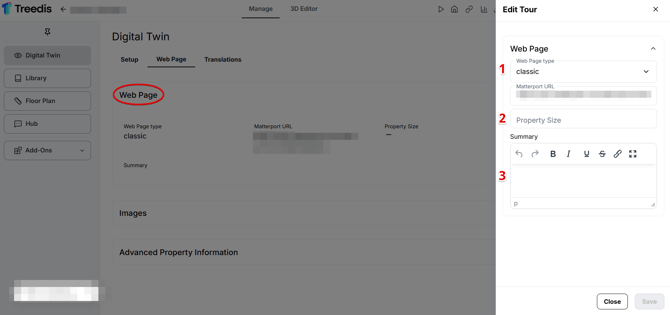**
1. **Web Page Type** - Displays the selected template layout (*Classic*, *Slick*, or *Modern*).
2. **Property Size** - Displays the total size of the space.
3. **Summary** - A text field for detailed information that gives viewers an overview of the property.
#### **Web Page: Images**
The *Images* section provides an overview of all images attached to your tour and allows you to manage the *Gallery* displayed on the tour landing page.
Click **Manage Images** to adjust your gallery layout.
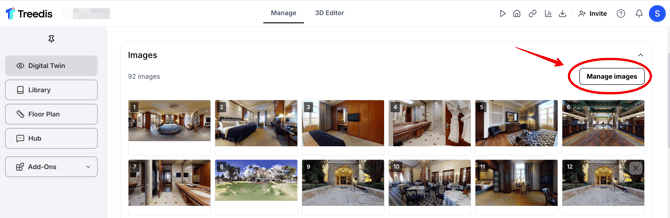
Within this menu, you can change the order of photos by simply dragging an image to the desired position, remove existing images **(1)** or upload new ones **(2).**
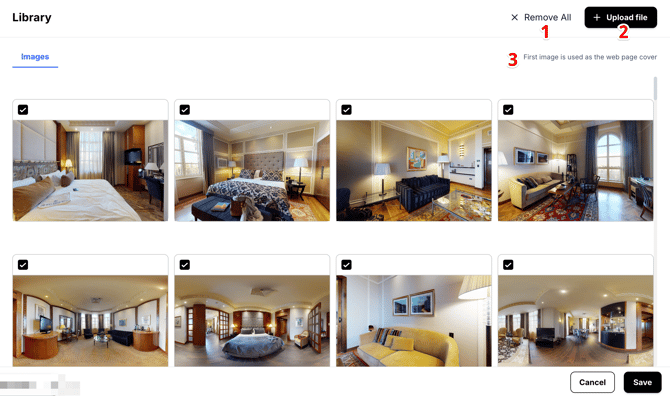
**Note:** The system message *“First image is used as the web page cover”* **(3)** applies only to the landing page cover image (banner). If you would like to change the **tour thumbnail,*****[refer to this article](https://info.treedis.com/help.center/can-i-change-the-main-tour-image).***
#### **Web Page:** Advanced Property Information
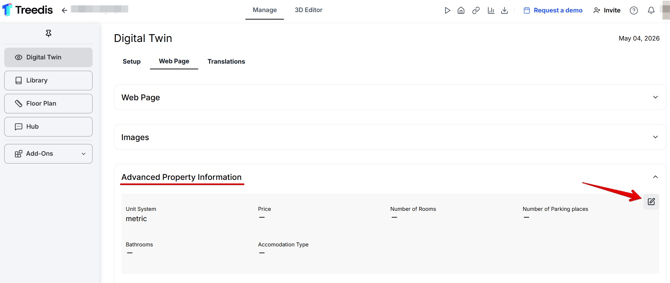
This section contains detailed technical specifications about the tour. The following fields help you organize and categorize property details for your business needs:
- **Unit System** (choose between Metric or Imperial)
- **Price**
- **Number of Rooms**
- **Number of Parking Places**
- **Bathrooms**
- **Accommodation Type** (specify the category of the property, e.g. Residential, Commercial, Apartment).
---
If you have further questions or need assistance with the settings, please contact us at [support@treedis.com](mailto:support@treedis.com)
- [Workspace NEW](https://info.treedis.com/help.center/workspace-new)
- [3D Editor](https://info.treedis.com/help.center/3d-editor#main-content)
- [Interface](https://info.treedis.com/help.center/3d-editor#interface)
- [Intro Screen](https://info.treedis.com/help.center/3d-editor#intro-screen)
- [3D Scans](https://info.treedis.com/help.center/3d-editor#3d-scans)
- [Burger Menu](https://info.treedis.com/help.center/3d-editor#burger-menu)
- [Highlight Reel](https://info.treedis.com/help.center/3d-editor#highlight-reel)
- [Map](https://info.treedis.com/help.center/3d-editor#map)
- [Panorama](https://info.treedis.com/help.center/3d-editor#panorama)
- [Tags](https://info.treedis.com/help.center/3d-editor#tags)
- [Polygons](https://info.treedis.com/help.center/3d-editor#polygons)
- [Measurements Feature](https://info.treedis.com/help.center/3d-editor#measurements-feature)
- [Media / Vimeo / Green Screen](https://info.treedis.com/help.center/3d-editor#media-vimeo-green-screen)
- [Giphy / Sketchfab](https://info.treedis.com/help.center/3d-editor#giphy-sketchfab)
- [Virtual Staging / Avatars](https://info.treedis.com/help.center/3d-editor#virtual-staging-avatars)
- [FAQ](https://info.treedis.com/help.center/faq)
- [Manage](https://info.treedis.com/help.center/manage)
- [IoT Integrations](https://info.treedis.com/help.center/iot-integrations)
- [Analytics](https://info.treedis.com/help.center/analytics)
- [Treedis AI](https://info.treedis.com/help.center/treedis-ai)
- [Work Requests (Notes)](https://info.treedis.com/help.center/work-requests-notes)
- [White Label](https://info.treedis.com/help.center/white-label)
- [Flows](https://info.treedis.com/help.center/flows)
- [Navigation](https://info.treedis.com/help.center/navigation)
- [Experience Creator \*](https://info.treedis.com/help.center/experience-creator)
- [VR (Virtual Reality)](https://info.treedis.com/help.center/vr-virtual-reality)
- [AR (Augmented Reality)](https://info.treedis.com/help.center/ar-augmented-reality)
- [HUB \*](https://info.treedis.com/help.center/hub)
- [Billing & Subscription](https://info.treedis.com/help.center/billing-subscription)
- [V-Commerce](https://info.treedis.com/help.center/v-commerce)
[%20(1).png?width=16&height=24&name=Group%2039638%20(1)%20(1).png "Chill listening crop-3")](https://www.treedis.com)
treedis.com Help Center
Copyright © 2025, treedis.com