---
title: "Types of Tour Errors: Troubleshooting Steps"
description: Treedis users may occasionally encounter some errors while loading their tours. Each error has its specific cause, and in this article, we aim to explain them to help you resolve the issues quickly an
---
[Skip to content](https://info.treedis.com/help.center/types-of-tour-errors-troubleshooting-steps#main-content)
English
Show submenu for translations
Open main navigation
Close main navigation
- English
Show submenu for translations
- [Go to treedis.com](https://www.treedis.com/)
[Go to treedis.com](https://www.treedis.com/)
This is a search field with an auto-suggest feature attached.
- There are no suggestions because the search field is empty.
1. [Help Center](https://info.treedis.com/help.center)
2. [FAQ](https://info.treedis.com/help.center/faq)
# Types of Tour Errors: Troubleshooting Steps
Treedis users may occasionally encounter some errors while loading their tours. Each error has its specific cause, and in this article, we aim to explain them to help you resolve the issues quickly and efficiently.
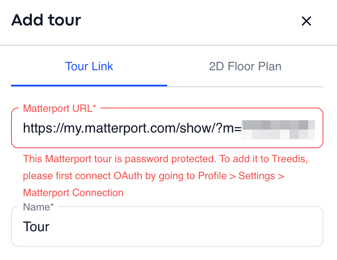
**1. While adding a Matterport tour to Treedis, system mistakenly indicates the tour is password protected, even though it is not**
This usually means the space you are trying to add belongs to a different Matterport account than the one currently connected to Treedis via OAuth.
- Solution: you need to disconnect OAuth, refresh the page, and then attempt to add the tour again. Please mind that if you reconnect OAuth to another Matterport account later, the mentioned tour may stop functioning properly on Treedis side.
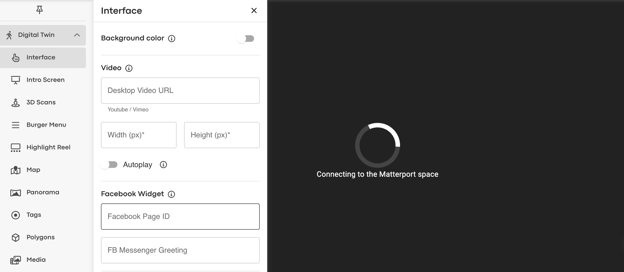
2\. If you see a message **"Connecting to the Matterport space"** in the Treedis 3D Editor which doesn't allow you to make any changes on the space:
- Solution: ensure the Matterport OAuth is connected to your Treedis workspace. Open *Settings* on the left sidebar **→** *Integrations→ click “Connect OAuth”*.
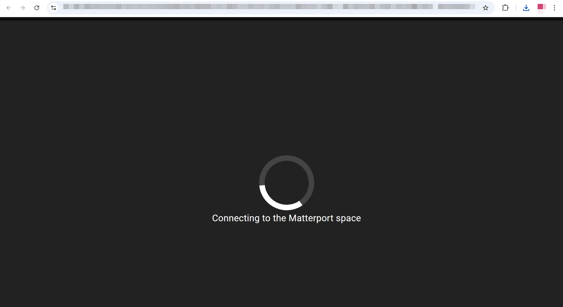
3\. If the Treedis 3D Editor works, but the public tour displays an error **"Connecting to the Matterport space"**:
- Solution: there is a need to check if your **White Label domain is active** and if the DNS records are operational and working.
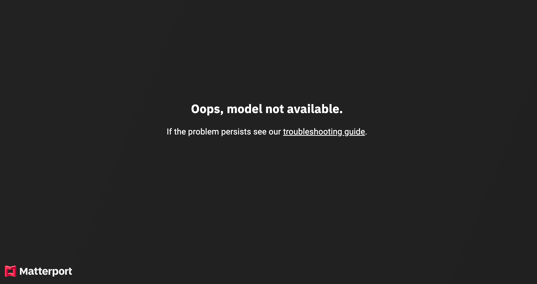
4\. If you face **"Oops, model not available"** error:
- Solution: if the Matterport tour is set to **"Public"** or **"Unlisted"** in the MP settings, verify that OAuth is not connected to the wrong Matterport account, making the tour inaccessible.
- Solution: if the Matterport tour is set to **"Private"**, ensure that OAuth is connected to your *Treedis workspace **→** Settings* on the left sidebar **→** *Integrations→ click “Connect OAuth”*.
If OAuth is already connected, disconnect OAuth and then reconnect it back.
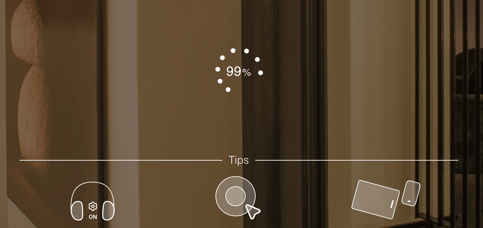
5\. When you open a Treedis tour, it loads but then **stuck at 14% / 99% / 100%** and keeps spinning with no result:
- **14-20% =** ifthe Matterport tour is set to **"Public"** or **"Unlisted"***,* check if OAuth is not connected to the wrong Matterport account, making the tour inaccessible.
- **14-20% =** if the Matterport tour is set to **"Private"**, ensure that OAuth is connected to your *Treedis workspace **→** Settings* on the left sidebar **→** *Integrations→ click “Connect OAuth”*.
- **20-100%** = Treedis **tour configuration reasons**: corrupted VS item (3d object) added to the Treedis tour; too many Media items added to the tour without a defined render range among others.
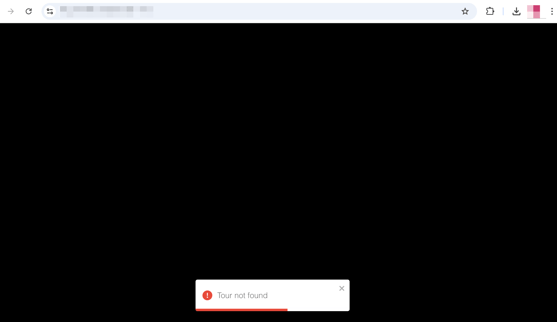
6\. If your Treedis tour displays a **"Tour not found"** notification:
- Solution: check if the **Treedis smart link** doesn't include an *apostrophe* symbol ( **'** ) or *underscore* ( **\_** ). Smart link can be set up in the tour *Manage section* *→* *Info*.
- Solution: your Treedis workspace may have **no active subscription.** In such case, please contact the Support Team via email [support@treedis.com](mailto:support@treedis.com)
---
If you have any questions or need further assistance, please contact us at
[support@treedis.com](mailto:support@treedis.com)
- [Workspace NEW](https://info.treedis.com/help.center/workspace-new)
- [3D Editor](https://info.treedis.com/help.center/3d-editor#main-content)
- [Interface](https://info.treedis.com/help.center/3d-editor#interface)
- [Intro Screen](https://info.treedis.com/help.center/3d-editor#intro-screen)
- [3D Scans](https://info.treedis.com/help.center/3d-editor#3d-scans)
- [Burger Menu](https://info.treedis.com/help.center/3d-editor#burger-menu)
- [Highlight Reel](https://info.treedis.com/help.center/3d-editor#highlight-reel)
- [Map](https://info.treedis.com/help.center/3d-editor#map)
- [Panorama](https://info.treedis.com/help.center/3d-editor#panorama)
- [Tags](https://info.treedis.com/help.center/3d-editor#tags)
- [Polygons](https://info.treedis.com/help.center/3d-editor#polygons)
- [Measurements Feature](https://info.treedis.com/help.center/3d-editor#measurements-feature)
- [Media / Vimeo / Green Screen](https://info.treedis.com/help.center/3d-editor#media-vimeo-green-screen)
- [Giphy / Sketchfab](https://info.treedis.com/help.center/3d-editor#giphy-sketchfab)
- [Virtual Staging / Avatars](https://info.treedis.com/help.center/3d-editor#virtual-staging-avatars)
- [FAQ](https://info.treedis.com/help.center/faq)
- [Manage](https://info.treedis.com/help.center/manage)
- [IoT Integrations](https://info.treedis.com/help.center/iot-integrations)
- [Analytics](https://info.treedis.com/help.center/analytics)
- [Treedis AI](https://info.treedis.com/help.center/treedis-ai)
- [Work Requests (Notes)](https://info.treedis.com/help.center/work-requests-notes)
- [White Label](https://info.treedis.com/help.center/white-label)
- [Flows](https://info.treedis.com/help.center/flows)
- [Navigation](https://info.treedis.com/help.center/navigation)
- [Experience Creator \*](https://info.treedis.com/help.center/experience-creator)
- [VR (Virtual Reality)](https://info.treedis.com/help.center/vr-virtual-reality)
- [AR (Augmented Reality)](https://info.treedis.com/help.center/ar-augmented-reality)
- [HUB \*](https://info.treedis.com/help.center/hub)
- [Billing & Subscription](https://info.treedis.com/help.center/billing-subscription)
- [V-Commerce](https://info.treedis.com/help.center/v-commerce)
[%20(1).png?width=16&height=24&name=Group%2039638%20(1)%20(1).png "Chill listening crop-3")](https://www.treedis.com)
treedis.com Help Center
Copyright © 2025, treedis.com