---
title: "Experience Creator: Backpack"
description: "The Backpack enables users to gather content during their journey, making it easy to incorporate instructions or tips for quick reference. To activate the Backpack, follow this path: 1. Spaces > Sel"
---
[Skip to content](https://info.treedis.com/help.center/experience-creator-backpack#main-content)
English
Show submenu for translations
Open main navigation
Close main navigation
- English
Show submenu for translations
- [Go to treedis.com](https://www.treedis.com/)
[Go to treedis.com](https://www.treedis.com/)
This is a search field with an auto-suggest feature attached.
- There are no suggestions because the search field is empty.
1. [Help Center](https://info.treedis.com/help.center)
2. [Experience Creator \*](https://info.treedis.com/help.center/experience-creator)
# Experience Creator: Backpack
The **Backpack** enables users to gather content during their journey, making it easy to incorporate instructions or tips for quick reference.
**To activate the Backpack, follow this path:**
1\. Spaces \> Select the tour

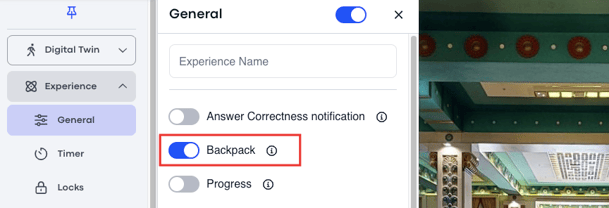
2\. Workspace \> Experience add-on \> General \> Backpack toggle ON:
**Adding Assets to Backpack**
Once you have enabled the Backpack for your experience, you can begin deciding the type of content that you would like the user to be able to gather.
This content can include any of the Pop Up conditions.
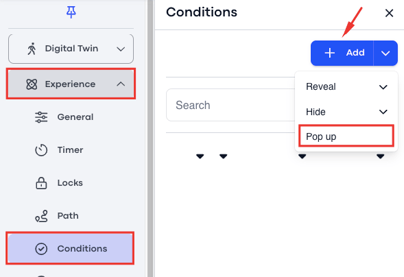
To add content to the Backpack, go to **Experience \> Conditions \> Add \> Pop up**
#### **Functionality**
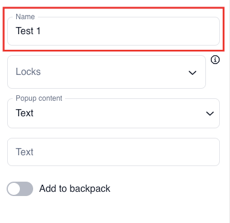
**1. Pop Up Name**
You can give the content that you would like to add to the backpack an internal name.
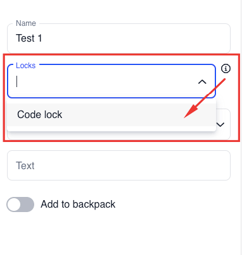
**2. Locks**
Assign the content to a lock. Once this lock is solved, it will activate the condition and the popup will appear and be added to the backpack.
**3. Pop Up Content**
Decide what type of content you would like to Pop Up once the lock is solved and be added to the backpack.
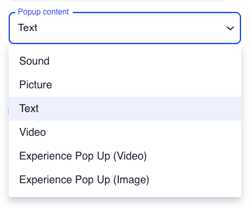
Then add that specific content:
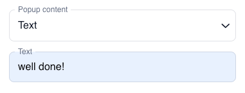
**4. Backpack Toggle**
The last step is the most important: Toggle 'Add to backpack' ON.

Once you have created the Pop Up condition and enabled 'add to backpack', you'll see it appear on the Conditions main page like this:
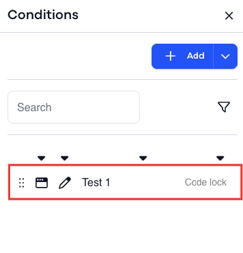
Now when the user solves the lock you assigned the condition to, the pop up content should appear and be added to the backpack, which you can view at the bottom of the screen in the experience:
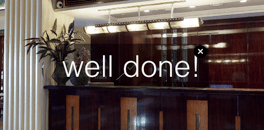
You can collapse the backpack reel at the bottom by clicking on the backpack icon in the burger menu.
- [Workspace NEW](https://info.treedis.com/help.center/workspace-new)
- [3D Editor](https://info.treedis.com/help.center/3d-editor#main-content)
- [Interface](https://info.treedis.com/help.center/3d-editor#interface)
- [Intro Screen](https://info.treedis.com/help.center/3d-editor#intro-screen)
- [3D Scans](https://info.treedis.com/help.center/3d-editor#3d-scans)
- [Burger Menu](https://info.treedis.com/help.center/3d-editor#burger-menu)
- [Highlight Reel](https://info.treedis.com/help.center/3d-editor#highlight-reel)
- [Map](https://info.treedis.com/help.center/3d-editor#map)
- [Panorama](https://info.treedis.com/help.center/3d-editor#panorama)
- [Tags](https://info.treedis.com/help.center/3d-editor#tags)
- [Polygons](https://info.treedis.com/help.center/3d-editor#polygons)
- [Measurements Feature](https://info.treedis.com/help.center/3d-editor#measurements-feature)
- [Media / Vimeo / Green Screen](https://info.treedis.com/help.center/3d-editor#media-vimeo-green-screen)
- [Giphy / Sketchfab](https://info.treedis.com/help.center/3d-editor#giphy-sketchfab)
- [Virtual Staging / Avatars](https://info.treedis.com/help.center/3d-editor#virtual-staging-avatars)
- [FAQ](https://info.treedis.com/help.center/faq)
- [Manage](https://info.treedis.com/help.center/manage)
- [IoT Integrations](https://info.treedis.com/help.center/iot-integrations)
- [Analytics](https://info.treedis.com/help.center/analytics)
- [Treedis AI](https://info.treedis.com/help.center/treedis-ai)
- [Work Requests (Notes)](https://info.treedis.com/help.center/work-requests-notes)
- [White Label](https://info.treedis.com/help.center/white-label)
- [Flows](https://info.treedis.com/help.center/flows)
- [Navigation](https://info.treedis.com/help.center/navigation)
- [Experience Creator \*](https://info.treedis.com/help.center/experience-creator)
- [VR (Virtual Reality)](https://info.treedis.com/help.center/vr-virtual-reality)
- [AR (Augmented Reality)](https://info.treedis.com/help.center/ar-augmented-reality)
- [HUB \*](https://info.treedis.com/help.center/hub)
- [Billing & Subscription](https://info.treedis.com/help.center/billing-subscription)
- [V-Commerce](https://info.treedis.com/help.center/v-commerce)
[%20(1).png?width=16&height=24&name=Group%2039638%20(1)%20(1).png "Chill listening crop-3")](https://www.treedis.com)
treedis.com Help Center
Copyright © 2025, treedis.com