---
title: "Experience Creator: Conditions"
description: Conditions are attached to locks. They’re used when you want to control the appearance and disappearance of objects in the experience. You can reveal, hide, or make a lock popup. To find Conditions, f
---
[Skip to content](https://info.treedis.com/help.center/experience-creator-conditions#main-content)
English
Show submenu for translations
Open main navigation
Close main navigation
- English
Show submenu for translations
- [Go to treedis.com](https://www.treedis.com/)
[Go to treedis.com](https://www.treedis.com/)
This is a search field with an auto-suggest feature attached.
- There are no suggestions because the search field is empty.
1. [Help Center](https://info.treedis.com/help.center)
2. [Experience Creator \*](https://info.treedis.com/help.center/experience-creator)
# Experience Creator: Conditions
**Conditions** are attached to locks. They’re used when you want to control the appearance and disappearance of objects in the experience. You can reveal, hide, or make a lock popup.
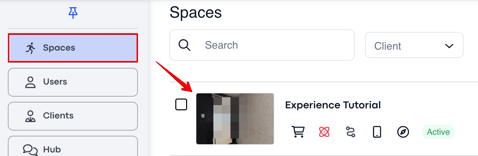
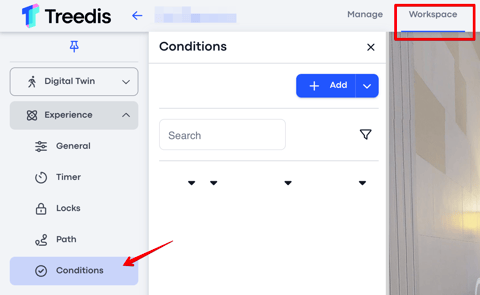
To find Conditions, follow this path:
1\. Spaces \> select the tour:
2\. Workspace \> Experience add-on \> Conditions:
### **Functionality**
There are three types of Conditions that you can add to the experience: Reveal, Hide, and Pop Up.
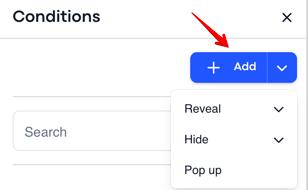
#### **Reveal Condition**
****
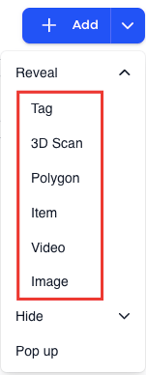
To add a Reveal Condition, click the dropdown menu and choose which element you would like to reveal.
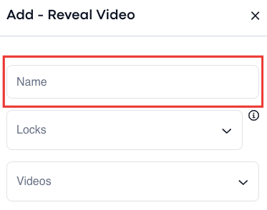
**Name**
After you have chosen the type of element you would like to reveal, you need to give your condition an internal name.
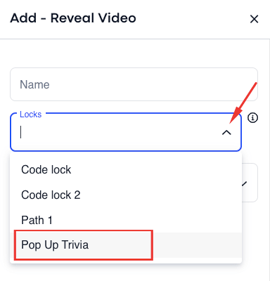
**Locks**
You will then have to decide which lock will activate the condition once solved.
For example, if you want that completing the Pop Up Trivia lock will reveal a video, then you choose the Pop Up Trivia lock here.
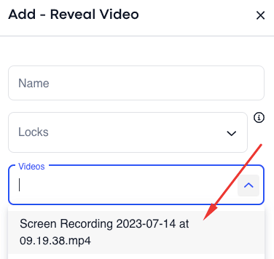
You then choose the **exact video** that you would like to be revealed.
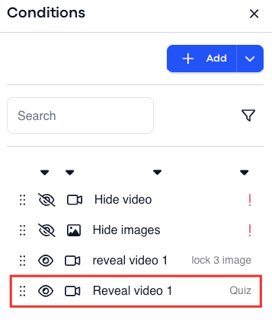
Once saved, it should appear at the bottom of the page:
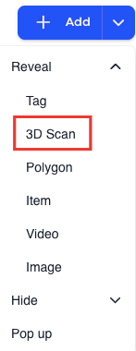
You can **reveal** 3D Scans if they were previously hidden. This will enable you to unhide specific locations while on the tour or experience:
#### **Hide Condition**
#### **** You can hide assets in the experience in two ways:
**1. Hide Without Locks**
This feature provides a valuable option for concealing assets within the user experience right from the beginning of their journey.
There are two main reasons you might want to do this: to reduce clutter and create a cleaner experience, or to selectively reveal information at specific points during the experience.
To hide assets without locks, you'll need to start by keeping one asset revealed. This particular asset will serve as the trigger for the sequential reveal of other assets, creating a domino effect.
Then hide all of the others one by one in the condition section without assigning them to locks.
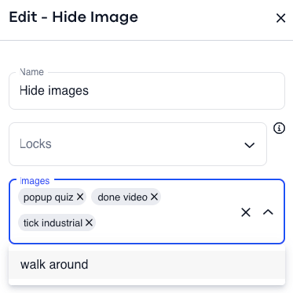
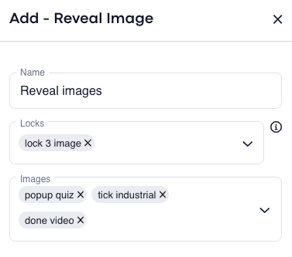
As you progress through the experience, you can then use the 'reveal' function to determine when and where you want these assets to become visible again, but this step requires the use of locks.
**2. Hide With Locks**
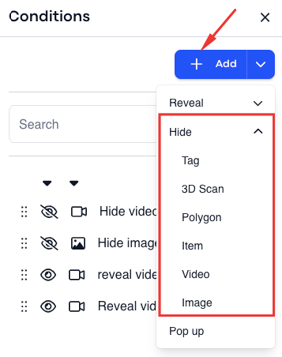
To add a Hide Condition, click the dropdown menu and choose which element you would like to be hidden.
**Name**
After you have chosen the type of element you would like to hide, you need to give your condition an internal name.
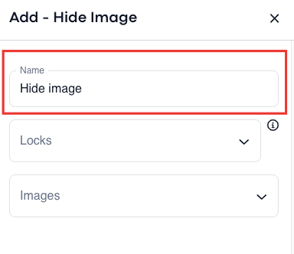
**Locks**
You will then have to decide which lock will activate the condition once solved.
For example, if you want that watching a video hides a VS object, or item, then you would choose that video as the lock here.
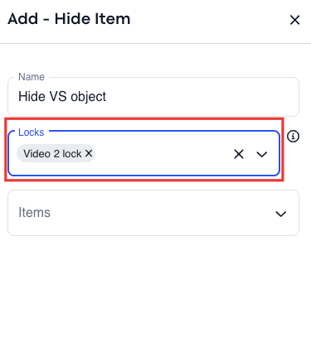
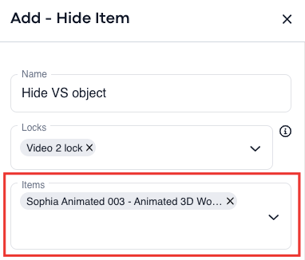
You then choose the exact image that you would like to be hidden.
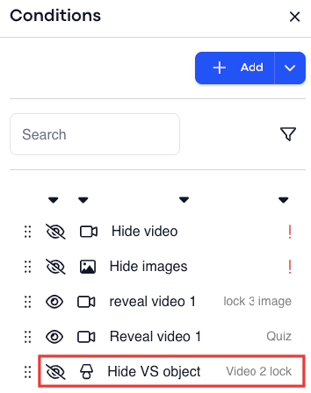
Once saved, it should appear at the bottom of the page:
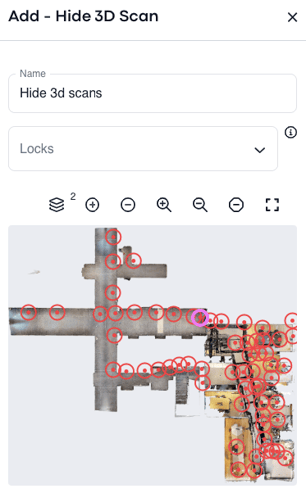
You can **hide** sweeps during the tour, preventing access to certain locations while in tour or experience mode:
#### **Pop Up Condition**
#### ****
**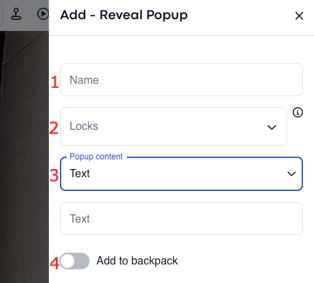**1. **Name** -Give the condition an internal name.
2\. **Locks** - Then decide which lock will activate the condition once solved.
3\. **Popup Content** -You can decide the type of content that you would like to appear once the lock has been solved. This is content outside of what has already been placed in the experience.
4\. **Add to Backpack** -Popup conditions can be added to the experience backpack if enabled.
Once saved, it should appear at the bottom of the page.
- [Workspace NEW](https://info.treedis.com/help.center/workspace-new)
- [3D Editor](https://info.treedis.com/help.center/3d-editor#main-content)
- [Interface](https://info.treedis.com/help.center/3d-editor#interface)
- [Intro Screen](https://info.treedis.com/help.center/3d-editor#intro-screen)
- [3D Scans](https://info.treedis.com/help.center/3d-editor#3d-scans)
- [Burger Menu](https://info.treedis.com/help.center/3d-editor#burger-menu)
- [Highlight Reel](https://info.treedis.com/help.center/3d-editor#highlight-reel)
- [Map](https://info.treedis.com/help.center/3d-editor#map)
- [Panorama](https://info.treedis.com/help.center/3d-editor#panorama)
- [Tags](https://info.treedis.com/help.center/3d-editor#tags)
- [Polygons](https://info.treedis.com/help.center/3d-editor#polygons)
- [Measurements Feature](https://info.treedis.com/help.center/3d-editor#measurements-feature)
- [Media / Vimeo / Green Screen](https://info.treedis.com/help.center/3d-editor#media-vimeo-green-screen)
- [Giphy / Sketchfab](https://info.treedis.com/help.center/3d-editor#giphy-sketchfab)
- [Virtual Staging / Avatars](https://info.treedis.com/help.center/3d-editor#virtual-staging-avatars)
- [FAQ](https://info.treedis.com/help.center/faq)
- [Manage](https://info.treedis.com/help.center/manage)
- [IoT Integrations](https://info.treedis.com/help.center/iot-integrations)
- [Analytics](https://info.treedis.com/help.center/analytics)
- [Treedis AI](https://info.treedis.com/help.center/treedis-ai)
- [Work Requests (Notes)](https://info.treedis.com/help.center/work-requests-notes)
- [White Label](https://info.treedis.com/help.center/white-label)
- [Flows](https://info.treedis.com/help.center/flows)
- [Navigation](https://info.treedis.com/help.center/navigation)
- [Experience Creator \*](https://info.treedis.com/help.center/experience-creator)
- [VR (Virtual Reality)](https://info.treedis.com/help.center/vr-virtual-reality)
- [AR (Augmented Reality)](https://info.treedis.com/help.center/ar-augmented-reality)
- [HUB \*](https://info.treedis.com/help.center/hub)
- [Billing & Subscription](https://info.treedis.com/help.center/billing-subscription)
- [V-Commerce](https://info.treedis.com/help.center/v-commerce)
[%20(1).png?width=16&height=24&name=Group%2039638%20(1)%20(1).png "Chill listening crop-3")](https://www.treedis.com)
treedis.com Help Center
Copyright © 2025, treedis.com