Once AR add-on is activated for your tour and the QR code is generated, you can proceed to open and use the AR tour on your mobile device.
If your tour QR code is not functioning 24 hours after AR was activated, please contact the Treedis support team at support@treedis.com to check the status of the conversion process and request an estimated completion time, as it depends on the tour size.
Note: The Navigation add-on must also be activated on your tour for the AR functionality to operate.
Opening the AR Tour on iOS and Android
For public tours, Android and iOS users can now launch the AR experience by simply scanning the tour's QR code with their phone camera. Downloading the dedicated application is now optional, which simplifies the process by removing login requirement.
If you prefer to use the app for your public tours, you can download the Treedis Navigation app. It is designed for public tours where users do not need to log in and a simple scan-and-go QR code experience is preferred.
-
iOS: Download the app via App Store
- Android: Download the app via Google Play
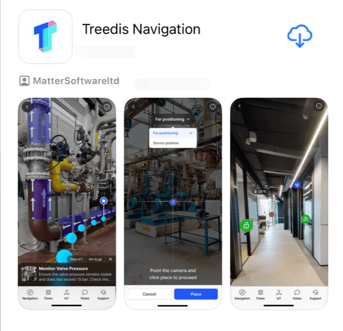
Once the app is downloaded:
-
Use your mobile device camera to scan the tour’s QR code. This will automatically open the tour in the browser.
-
When the tour interface opens, click the Launch AR Experience button or tap the Open button in the banner at the top of the screen to launch the AR navigation.
- Move your camera slowly to localize your surrounding environment and start the navigation.
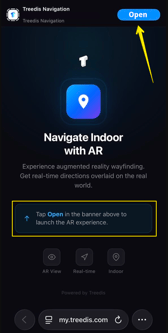
Note: You must be physically present at the real-world tour location to use the AR functionality. The app cannot localize or initiate navigation if you are in a different physical location.
Locating and Customizing QR Codes
You can access the tour's QR codes in several places depending on your project needs.
1. Standard QR Code
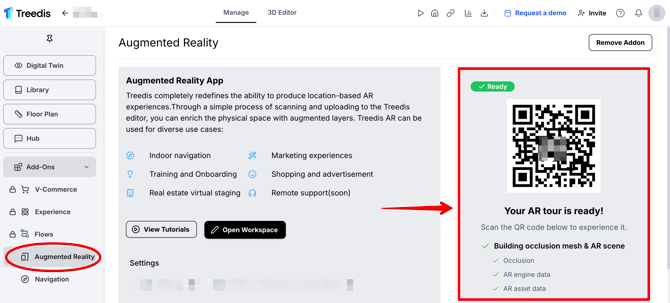
Your primary tour QR code is available directly inside the Augmented Reality add-on panel.
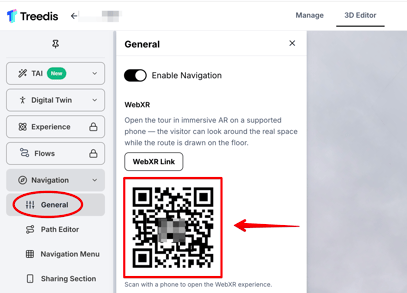
Since the Navigation tool is tied to AR functionality, you can also access this same QR code by navigating to 3D Editor > Navigation add-on > General.
2. AR Markers (Deep-Linked Coordinates)
If you would like your AR tour to start from a pre-defined location, you can do so using AR Markers, available in 3D Editor > Navigation add-on.
Open the AR Markers tab and click + Add button to generate a QR code for a specific physical spot. Once the marker is generated and printed/placed in the matching real-world spot, scanning its QR code will allow the app to recognize user's position and launch the tour from these exact coordinates.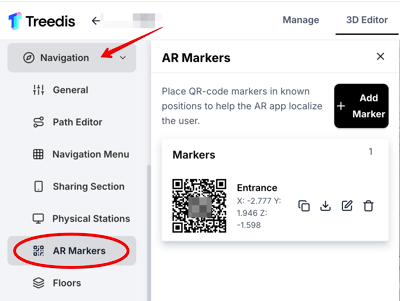
Helpful Tip: AR Markers are proximity-based and will attempt to detect user's position on real-scanned location within approximately 10 meters radius from the designated spot.
Legacy Treedis AR App
The original Treedis AR application (which previously required a user's login) was deprecated as of June 1, 2026. However, the legacy app can still be used for AR tours that were activated before that date. Note that scanning a QR code is not supported in the legacy app - instead, you can copy and paste the tour URL directly into the app search bar to locate and start the navigation.
For AR tours activated after June 1, 2026, please use the new Treedis Navigation app as outlined above.
Launching AR for Protected Spaces with Sensitive Data
If your tour contains sensitive data and cannot be shared publicly (e.g., factories, restricted facilities, or corporate environments), you will need the secure Treedis Connected Workers application.
Connected Workers is a Treedis solution designed for industrial and manufacturing sectors and is available for purchase on any paid subscription tier. The system is managed directly by the Treedis Sales team.
To get started, you can submit a Contact Sales Form, reach out directly to your Account Manager, or contact the Support team at support@treedis.com and they will assist with all arrangements.