Workspace is an operational unit that serves as an environment where projects (spaces), users, and permissions are managed together. Workspaces represent the highest level of organization in Treedis, allowing you to separate different business branches, clients, projects, or teams.
Within a workspace, you can upload and host spaces, organize and share projects with team members, invite users to collaborate on tours, and manage their access rights.
Accessing a Workspace
When you first get started with the Treedis platform, a workspace is automatically created for you, and all of your content is stored within it.
To access your workspace, click the current workspace name in the upper-left corner of the dashboard.
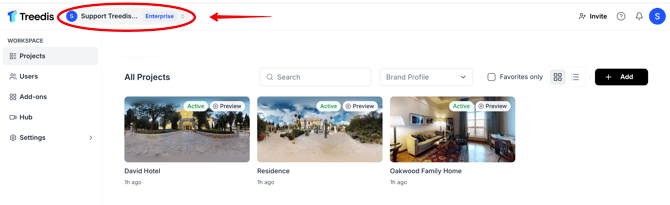 This opens a dropdown menu where you can view the workspace(s) and switch between different workspaces, if multiple available.
If you have been invited to another workspace by a colleague or another company, that workspace will appear in the same dropdown menu under the "Shared with me" section.
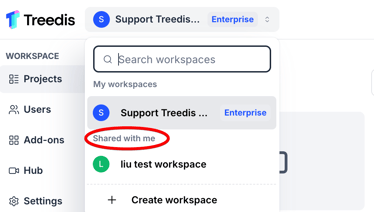
You can operate across multiple workspaces simultaneously. For instance, you may own one workspace while being a guest in several others. You can easily switch between workspaces with a single click, without a need to log out and sign in to a different account.
Important: If your workspace is white-labeled, your session is limited to that single branded workspace only. Your workspace dropdown will remain greyed out, preventing you from switching to other workspaces.
To manage multiple workspaces and switch between them freely using the dropdown menu, you must log in through the main Treedis dashboard instead: https://my.treedis.com/admin/login
Creating a New Workspace
You are not limited to just one workspace. You can create additional workspaces whenever you need to separate teams, brands, or large-scale projects.
To create a new workspace: open the workspace dropdown menu and click + Create workspace at the bottom of the list.
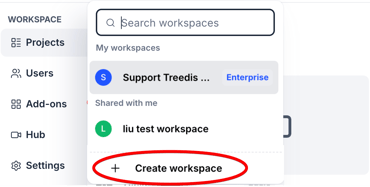
Then, enter the workspace name and confirm by clicking create workspace.
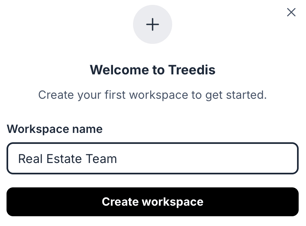
Note: The new workspace is created under the default Basic (free) subscription plan. You can change or upgrade the workspace subscription at any time to a plan that best aligns with your team and project requirements.
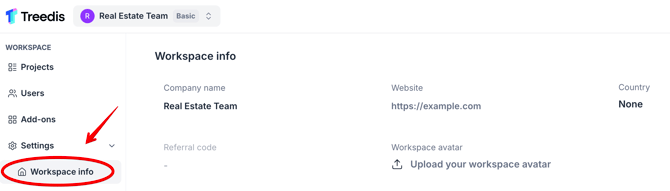
You can always edit the workspace name and related information. To do so, navigate to the left sidebar, select Settings and open the Workspace Info tab.
This section contains the identity details of your workspace and allows you to update the company name (workspace title), workspace avatar, website URL, country and other relevant details.
Navigating Within Workspace
Once inside a workspace, you can view and efficiently organize All projects that belong to this workspace.
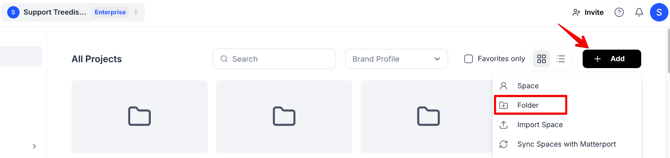
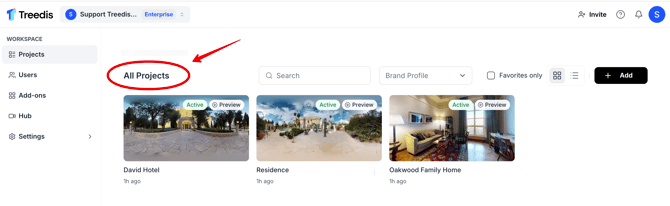 Projects can be grouped into folders (e.g. Drafts, Real Estate, or team-specific needs) to maintain a clean and structured workspace. To create a folder, click the + Add button to generate a new folder.
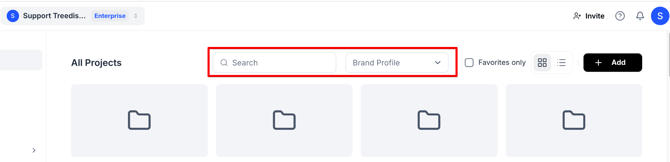
Use the Search Bar or Brand Profile filter to quickly locate specific tours and projects within your workspace.
-
Search Bar - Type a tour title to locate it instantly. The search option works within your current workspace only, it cannot find tours from other workspaces.
-
Brand Profile - Filter tours by their assigned brand profile. Select a brand profile from the dropdown menu, or type a profile name to narrow down the results.
You can also switch between Grid View and List View depending on your visual preference while working.
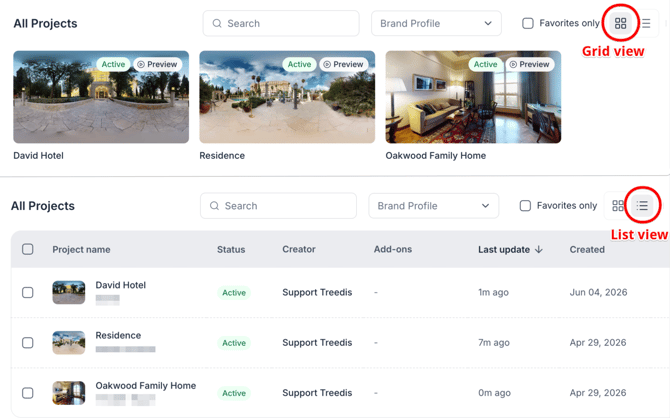
Clicking on a project (tour itself) opens its standard dashboard and configuration tools. From there, you can navigate between the Manage section and the 3D Editor to configure settings, add content, and work with the tour.

If you have further questions or need assistance with the settings, please contact us at support@treedis.com