Augmented Reality (AR) is a technology that enhances the physical world with augmented layers. This allows users to experience both the real environment and interactive 3D layers simultaneously. The key difference between Augmented Reality and Virtual Reality (VR) lies in how they are experienced - VR immerses users in a fully digital environment through a headset, while AR, such as the Treedis AR application, can be accessed directly via mobile and tablet devices.
Note: The Treedis AR add-on is not available for standalone purchase. It can only be activated together with the Navigation add-on on paid subscription tiers.
-
Business Plan - Includes 4 free add-ons per workspace. The AR add-on can be applied to spaces up to 4,000 sqm.
-
Premium Plan - Includes 30 free add-on activations per workspace. The AR add-on can be applied to spaces ranging from 4,000 to 10,000 sqm.
-
Enterprise Plan - Includes a custom number of add-ons tailored to your needs. The AR add-on supports large-scale spaces exceeding 10,000 sqm.
How to Activate AR on a Tour
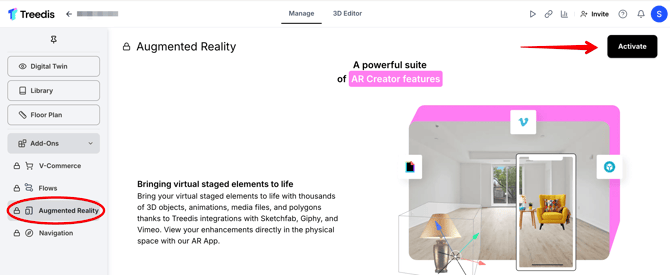
1. Go to Spaces, choose your desired tour, and click the Add-Ons tab in the left sidebar > select Augmented Reality > click Activate:
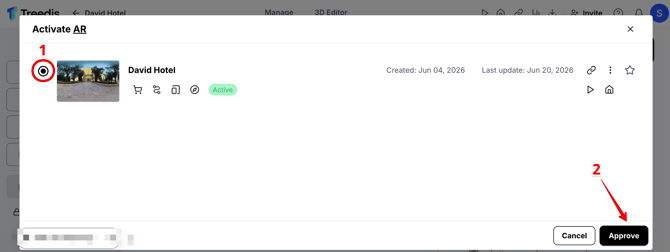
2. Verify that the correct tour has been selected for AR, then click Approve.
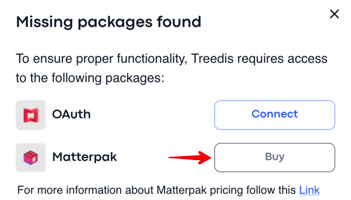
3. Connect your Treedis account to Matterport account via OAuth + purchase MatterPak.
-
To connect OAuth - log in to your Treedis workspace > open Settings on the left sidebar > Integrations > click the button to Connect OAuth. If you have multiple Matterport accounts, make sure to connect the one that hosts the specific tour you are working with. Please avoid disabling OAuth until the tour is fully converted to AR mode, which typically takes 24 hours.
- MatterPak can be purchased in Matterport under the Add-ons tab. Our system requires the MatterPak in order to convert the tour into AR mode.
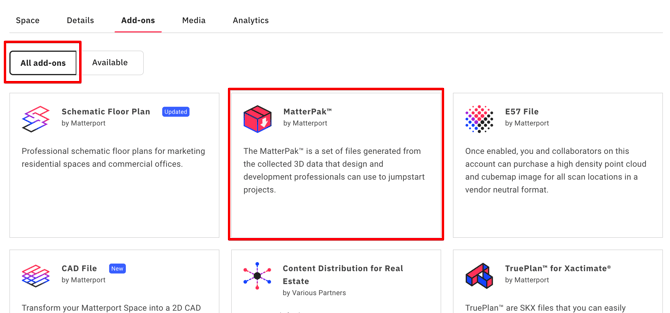
4. Once OAuth is connected and the MatterPak is available, the Augmented Reality add-on will display a blue "Start AR Processing" button. Click this button to begin the conversion.
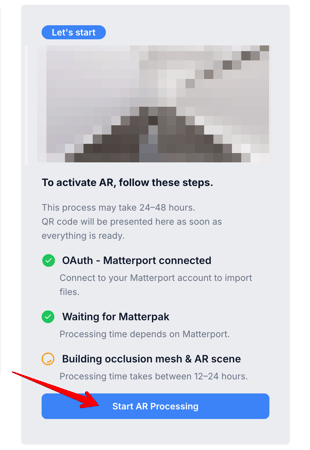
Important: The AR asset conversion usually requires from 12 to 24 hours to complete.
If your tour QR code is not functioning after 24 hours, please contact our support team at support@treedis.com to check the status of the conversion process and request an estimated completion time, as it depends on the tour size.
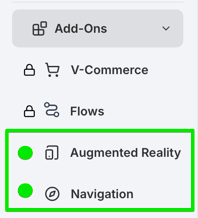
5. Finally, activate the Navigation add-on for the tour in addition to the AR add-on. These add-ons work together to enable navigation functionality and cannot be used separately.
Click here for detailed instructions on how to launch the AR tour on your device.
If you have further questions or need assistance with the settings, please contact us at support@treedis.com