Downloading the AR App
Once AR add-on is activated for your tour and the QR code is generated, you can proceed to open and use the AR tour. There are several ways to open the AR tour depending on the mobile device and its operating system.
Apple iOS Devices
-
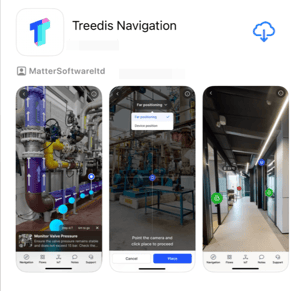
iOS users with tours that are shared publicly should download the "Treedis Navigation" app from the App Store.
This app allows users to open the AR tour directly in the browser by simply scanning the tour QR code, with no login required.
-
iOS users with private or sensitive tours that are protected from public access (e.g., factories or restricted environments) should download the "Treedis Connected Workers" app from the App Store.
This app supports user login functionality, providing an additional layer of protection for secured tours.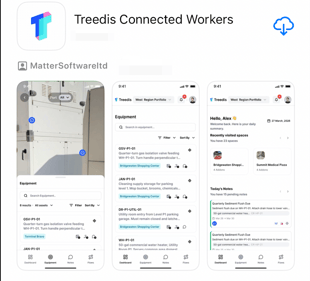
Android Devices
-
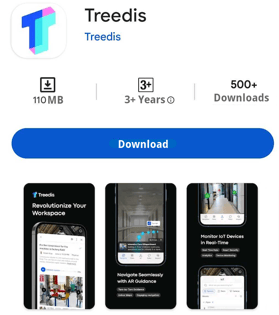
Android users should download the standard Treedis AR app from Google Play. Once user logs in, the tour will appear automatically in the app, without a need to scan the tour QR code.
How to Access the Tour QR Code
The tour QR code is available within the Augmented Reality add-on panel.
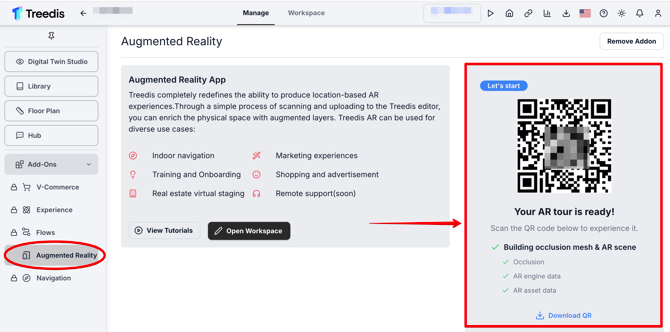
If your tour QR code is not functioning after 24 hours since the AR was activated, please contact our support team at support@treedis.com to check the status of the conversion process and request an estimated completion time, as it depends on the tour size.
Opening the AR Tour on Android
Treedis AR App
After downloading the Treedis AR app, log in using your Treedis account credentials, or select to "Continue as quest".
Once you are logged in, your tour will appear automatically in the app, with no need to scan a tour QR code.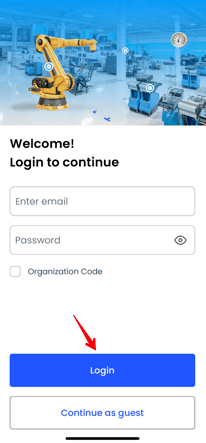
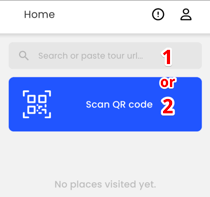
However, you can also open a tour manually by either (1) pasting the tour URL into the search bar, or (2) scanning the tour QR code.
Opening the AR Tour on iOS
Treedis Navigation App
The "Treedis Navigation" app is designed for public tours where users do not need to log in and where a simple scan-and-go QR code experience is preferred.
-
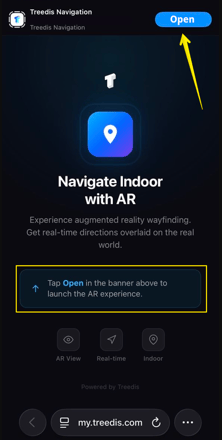
Use the device camera to scan the tour's QR code. This will automatically open the tour in the native iOS Safari browser.
-
Once the tour opens in Safari, simply tap the OPEN button in the banner at the top of the screen. This will launch the AR navigation experience after which you can move your camera slowly to track your position and start the navigation.
Treedis Connected Workers App
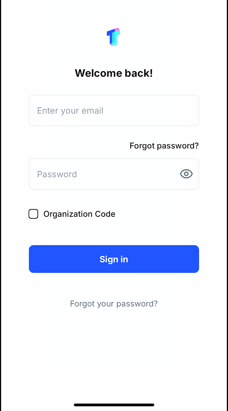
The "Treedis Connected Workers" app is designed for protected tours containing sensitive data that should not be publicly accessible. Users should log in using their own account credentials.
Once logged in, the tour will appear automatically in the app, without a need to scan the tour QR code.
Note: You must be physically present at the actual tour location to test the AR functionality. The app cannot load or display the tour if you are in a different location.
If you have further questions or need assistance with the settings, please contact us at support@treedis.com