Integrating your Matterport OAuth (Open Authorization) with Treedis guarantees the privacy of your tours and prevents unauthorized access via public links. This feature adds an extra layer of security to your content while ensuring your protected spaces load correctly within Treedis platform.
When Is OAuth Required?
By default, Treedis can load Public Matterport spaces without any additional setup. However, if your Matterport space has restricted access - meaning it is set to Private or Password Protected - Treedis cannot load it without an authorized connection to your Matterport account.
In addition to private/protected spaces, OAuth is required for two more features:
-
Augmented Reality add-on activation and AR processing.
- TAI Tagging feature offered on the Enterprise plan.
How to Connect OAuth in Treedis?
- Log in to your Treedis workspace using https://my.treedis.com/admin/login
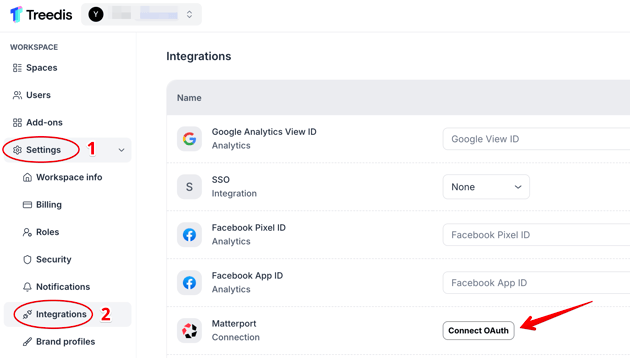
- In the left sidebar, go to Settings (1) → Integrations (2) → click "Connect OAuth"
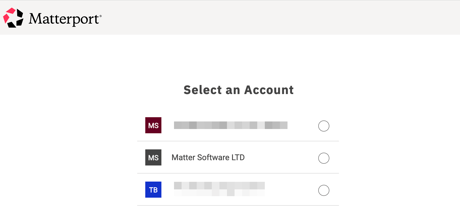
- Select the Matterport account that hosts the space you want to connect - if you have multiple accounts, make sure to select the correct one.
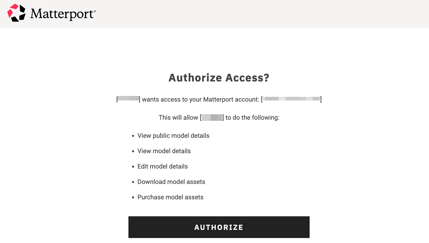
- In the authorization popup that appears, click Authorize to confirm and sync your Matterport account with Treedis.
Once authorized, navigate to your tour in Treedis and confirm it loads correctly. If the tour does not load, try disconnecting OAuth, refresh the page and then reconnecting it.
Note: If your Treedis workspace is white-labeled, you must connect the OAuth while logged in through the official Treedis login page: https://my.treedis.com/admin/login. Once connected, you can log back into your white-labeled workspace.
Important: Failure to connect OAuth will result in your private or password-protected tours not loading in Treedis.
Additional Notes
Multiple Matterport Accounts
Treedis can only connect to one Matterport account via OAuth at a time. If you have private spaces across several Matterport accounts, connecting OAuth to one account will cause private spaces from the second account to stop loading in Treedis. Therefore, you may consider the following solutions:
-
Either keep all Matterport tours set to Public with OAuth disconnected.
-
If you prefer to keep the tours Private, try to add your secondary Matterport account as a collaborator with 'full access' to your primary account, and connect OAuth to the primary account. (Note: due to potential permissions policies on Matterport's side, full OAuth compatibility across accounts cannot be guaranteed).
Password on Matterport Spaces
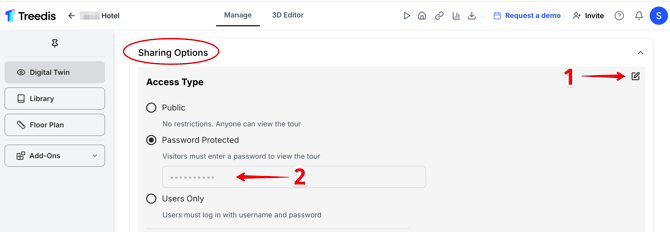
Once OAuth is connected, it overrides the Matterport-side password when the tour is viewed through Treedis. If you want your tour to remain password-protected on Treedis, make sure to set a password directly in your Treedis tour settings (Manage → Sharing Options → Password).
Click here to review common platform and OAuth connection errors and troubleshooting steps.
If you have any questions or need further assistance, please contact us at
support@treedis.com