TAI Library, which is part of the TAI Design feature, introduces a powerful tool that helps Treedis users simplify the tour staging and editing process by integrating their own library of images. This preset image catalog can include anything from furniture and decorative objects to logos and branded elements that you would like your clients, partners, or team members to use while editing a space.
In simple terms, you can create your own catalog of products and branded items, then share the tour with your clients or partners so they can use these preset images to decorate, redesign, or customize the space for architectural, construction, commercial, or any other relevant purposes.
How to Access TAI Library
To access the Library option, open your tour 3D Editor (Workspace) and select TAI from the left sidebar. First, ensure that the TAI Design feature is activated for the tour, then toggle TAI Library ON.
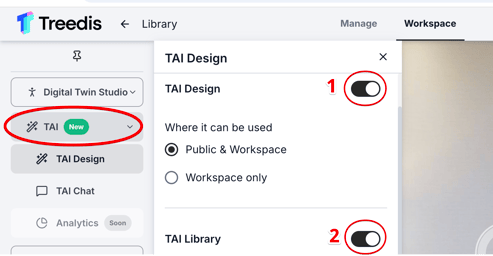
Once the Library toggle is enabled, the relevant icon will appear within the TAI Design interface on the public tour.
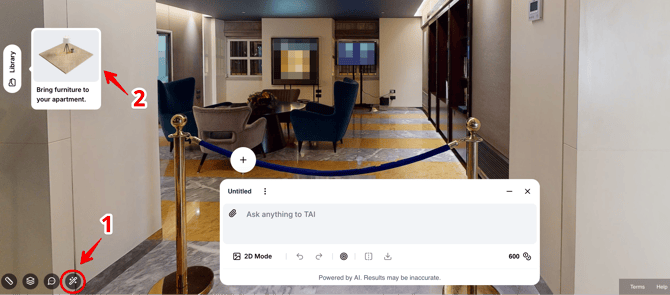
The library is empty by default, so at this point you can start creating your own catalog of images.
How To Create a Catalog
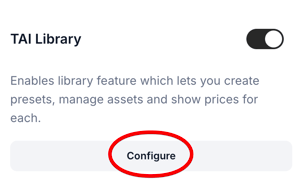
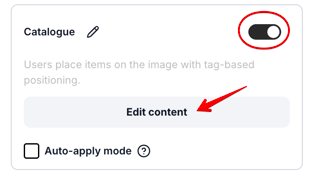
To create a catalog, click Configure in the admin panel and in the Catalogue section, proceed to Edit Content:
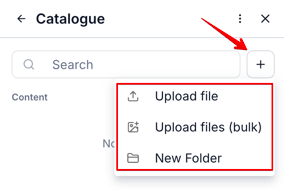
Start building your library by clicking the “+” icon, which offers 3 options: upload a file (single item), upload files in bulk (up to 20 items at once), or create a new folder.
Folders allow you to organize your images into catalogs for easier navigation and management.
 Example: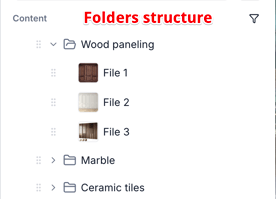
Alternatively, you can use Export / Import option to add images to the library as a JSON file, if you have your catalogs previously created in a suitable table format.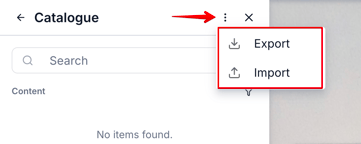
Additional Catalogue Settings
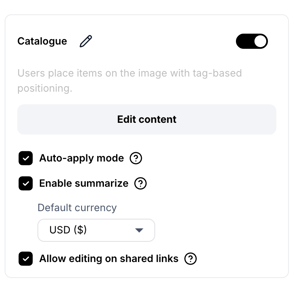
Auto-apply mode - when enabled, selecting an item from the catalogue immediately sends it to AI. When disabled, items are attached for review before sending.
Enable summarize - when enabled, end users see a Summarize button that opens a summary table and PDF of placed items, including per-item prices.
Allow editing on shared links - when enabled, viewers on a shared public link can edit the summary locally (add/remove items, change quantities) and download it as PDF. Edits are scratchpad-only - they are not persisted and are lost on page reload.
Uploading Images to the Catalog
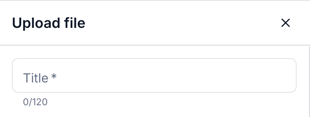
When uploading an image to your catalog, you will be asked to:
1. Enter the image title.
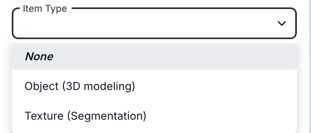
2.Select the item type (optional) - either Object (3d modeling) or Texture (segmentation). The types help the AI better understand how to handle the item when applying it to the scene.
- Object type - used for furniture or standalone items so that AI can apply a 3D modeling to it, including shadows and reflections, and avoid placing the item in unintended locations.
- Texture type - used for surfaces like flooring or walls etc, so that AI can treat it as a full surface and apply it using segmentation rather than replacing parts individually.
If no type is selected, the system will treat the item as None type.
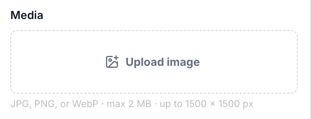
3. Upload the media file (JPG, PNG, WebP format, max 2 MB up to 1500 × 1500 pixels).
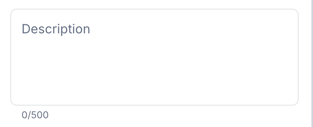
4. Enter image description (optional) - if provided, this appears as a tooltip when the item is hovered over. Description can include product details, links, or any other relevant notes.
5. Enter the image prompt (optional) - this is a predefined text command that will be applied automatically when the library image is used. This removes the need to manually type a text prompt during editing. The prompt is needed if you want to specify something that AI will never guess until you instruct it.
You can use brackets [ ] to include attributes in your prompt, provided they have been created for the image. You can check how to create attributes below.
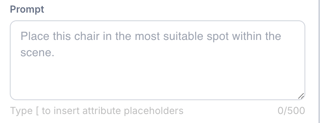
Tip: Check out the prompt examples for better understanding. If a prompt is added to your catalog image, it will auto-apply as a text command while working with TAI Design:
1. "Insert attached furniture (indicate the item) in the selected area only. Use exact real-world dimensions. Blend the item with scene lighting and shadows."
2. "Place this furniture (e.g. dining set) centered in the dining area with 80cm of clearance on all sides for chair pull-out. Make it look like a natural part of the scene."
3. "Apply the tiles as a full feature wall rather than across an entire room. Do not modify anything outside the selected area."
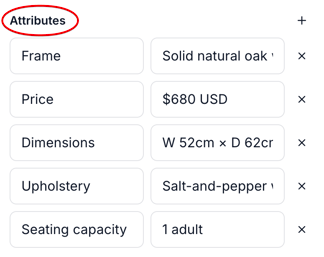
6. Add image attributes (optional) - this means the values that you can add for each item, such as dimensions, material, size, color, price or any other parameters. If the attributes are created, they will be automatically applied to the prompt once the image is used during the tour editing.
Below are examples of attributes and how they are displayed in TAI editing mode:
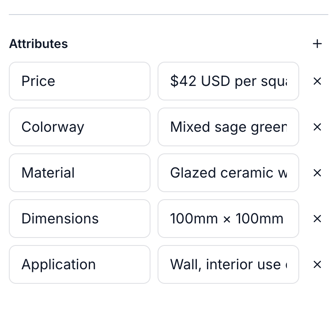 Example: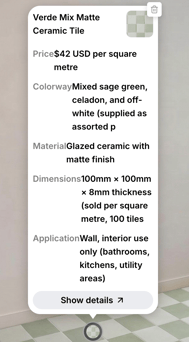
How the Library Works in the Public Tour
Once images are added to the catalog, they will appear in the Library on public tour as part of the TAI Design feature:
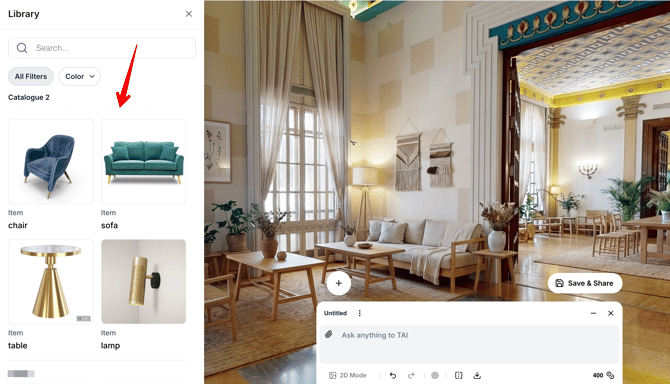
-
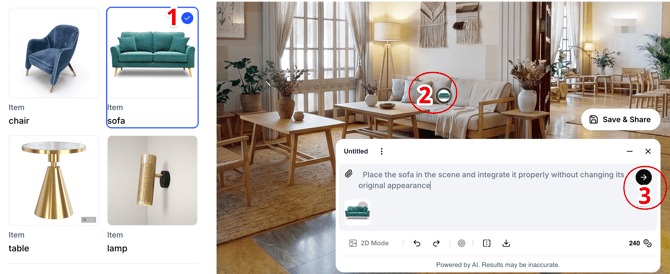
To use the Library, select an image from the catalog (1) that you would like to integrate into the space.
-
Then click on the area in the tour where you want to place it (2). At this stage, if a predefined prompt exists for this image, it will be applied automatically, so there is no need to type a new command. If no prompt has been created for the image, you will need to enter a text prompt manually in the TAI panel to instruct the AI on how to use the selected image.
-
Click Send (3) and the selected library item will be integrated into the space.
Tip: While both 2D and 360 panorama modes are supported in TAI Library, Pro mode is recommended as it usually provides more accurate and seamless results.
Creating the Presets
In addition to catalog images, you can also create the Presets - reference images that apply a space during the AI editing.
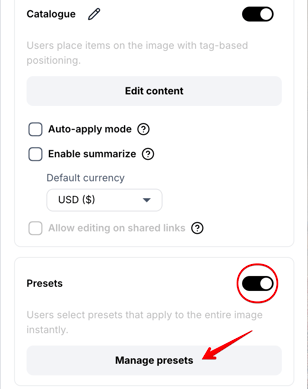
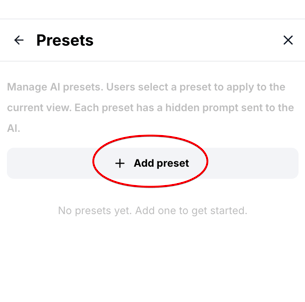
Activate the Presets toggle → go to Manage presets → click +Add preset button:
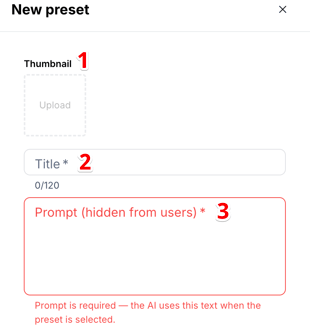
Here you can add the images:
1. Upload a thumbnail (preset image)
2. Add an image title
3. Add a text prompt (optional) - the prompt is needed if you want to apply the preset automatically to the tour, without the need to manually enter a text command during tour editing.
How Presets Work in the Public Tour
Once you have created the presets and it appears in the Library section, you can simply click on the desired image, and the AI will automatically apply it to the space, provided that a prompt has been previously created for the image.
Below you can find how the presets are displayed within the library on the public tour:
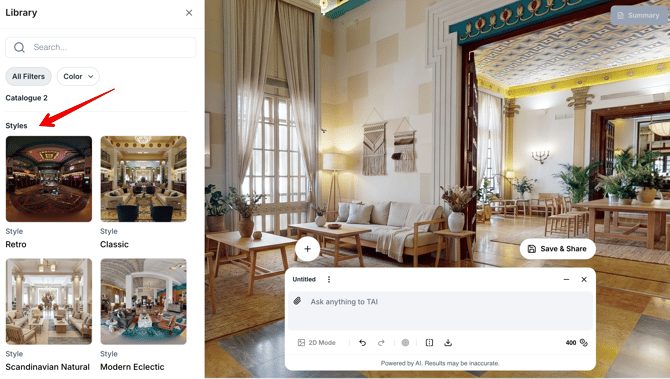
Note: The editor is powered by AI. The results may vary between sessions, even when the same image is used. It is recommended to write as detailed text prompt as possible to achieve the most accurate and precise results.
What Are Filters and How They Work
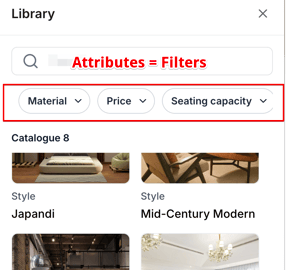
If attributes have been created for your images, filters will be automatically generated at the top of the library. These filters are based on the attributes themselves and can include dimensions, size, brand, colorway, price, etc. With the help of filters, users can easily find the necessary items and maintain better organization within the library.
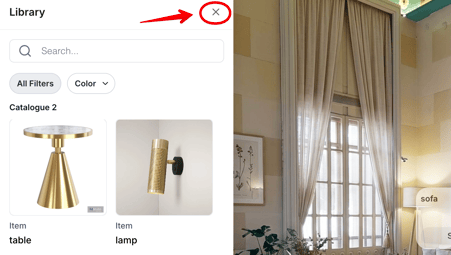
To exit the TAI Library catalog, click the Exit (X) button in the top corner. Make sure to save your changes before closing, as the system does not automatically save progress between sessions.
If you have further questions or need assistance with the settings, please contact us at support@treedis.com