Efficient team collaboration is the backbone of any successful project. With the Treedis dashboard, managing your workspace and configuring access for team members has never been more seamless.
Navigating the Users Dashboard
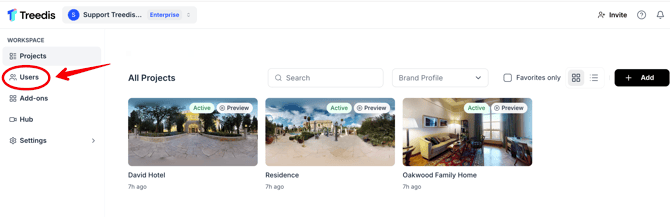
When you log in to your Treedis workspace, you are taken to the main Projects directory. To manage your team, navigate to the left sidebar and select Users. In Treedis, a user is the member of workspace who has been invited to collaborate on tours and projects.
Inviting Users to Join a Workspace
If you would like your colleagues, partners, or team members to access your projects and collaborate on tours, you can invite them as Users to your workspace.
To invite a new user: click the Invite member button located in the upper-right corner of the Users page.

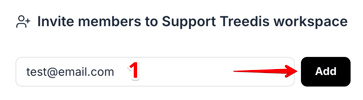 1. In the pop-up window, enter the email address of the person you want to invite and click Add. You can invite multiple users at once by separating their email addresses with commas.
 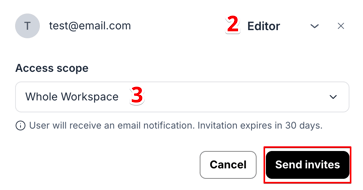 2. Once the email is added, select the access level a user will have within your workspace: Admin, Editor, Viewer, or a custom role if available. Click here to review users access types.
3. Lastly, define the spaces the user will access. By default, users are granted access to 'all spaces'. If you want to restrict access to specific tours only, select the desired tours from the dropdown list.
Finally, click the Send invites button to complete the process.
Note: Once you click Send Invites, the recipient will receive an email invitation. For security reasons, invitations automatically expire after 30 days if left unaccepted.
What Happens When Users Receive the Invitation
Once an invitation is sent, the recipient will receive an email containing a secure link to join your workspace. Clicking the link will direct them to one of two paths:
- If users already have a Treedis account, they will be prompted to sign in. Once logged in, your workspace will automatically appear in their workspace selection dropdown.
- If users do not have a Treedis account yet, they will be prompted to sign up. As soon as their registration is complete, your workspace will appear in their workspace selection dropdown.
Managing Existing Users
Once a user accepts their invitation, they become an active member of your workspace. The Users tab serves as a live control center, allowing you to modify your team’s access permissions at any time.
Inside the Users tab, you will see a data table listing everyone who has access to your workspace. The dashboard organizes user information across six columns:
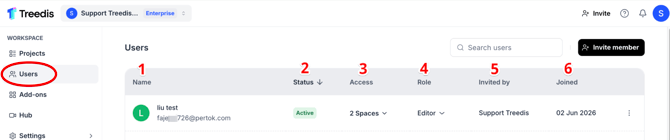
1. Name- Identifies the user and their associated login email address.
2. Status - Displays whether a user is currently Active or Pending (waiting to accept the invitation).
3. Access - Shows the number of spaces a user can access. You can adjust the number of spaces at any time by assigning new tours or removing existing ones.
4. Role - Indicates the user’s permission level within the workspace (e.g., Admin, Editor, Viewer or custom role). If you need to change a user's permissions - for example, promoting an Editor to an Admin, click the dropdown directly inside that user's Role column and select the new role. The system will update the user permissions immediately.
5. Invited by - Tracks who sent the original workspace invitation.
6. Joined - Marks the date a user joined the workspace.
If your team member no longer requires access, click the three vertical dots on the right side of the user's row and select Remove User. Once removed, the user will immediately lose access to the workspace and all associated projects.

User Limits per Subscription Plan
The number of users allowed within one workspace depends on its subscription plan:
| Plan Tier | User Limit |
| Free | 1 User |
| Business | 10 Users |
| Premium | 50 Users |
| Enterprise | Custom number of users |
Note: If your workspace reaches its user limit and additional team members are required, upgrading to a higher subscription tier will be necessary.
If you have any questions or need assistance with the settings, please contact us at support@treedis.com