---
title: "Brand Profiles: Managing Logo, Colors, and Settings"
description: Brand Profile
---
[Skip to content](https://info.treedis.com/help.center/brand-profiles-managing-logo-colors-and-settings#main-content)
English
Show submenu for translations
Open main navigation
Close main navigation
- English
Show submenu for translations
- [Go to treedis.com](https://www.treedis.com/)
[Go to treedis.com](https://www.treedis.com/)
This is a search field with an auto-suggest feature attached.
- There are no suggestions because the search field is empty.
1. [Help Center](https://info.treedis.com/help.center)
2. [Workspace NEW](https://info.treedis.com/help.center/workspace-new)
# Brand Profiles: Managing Logo, Colors, and Settings
Creating a consistent, white-labeled experience for the virtual tours is essential for maintaining brand integrity. **Brand Profiles** help achieve this by holding the **visual elements** (logos and color schemes) that belong to your partners, clients, or contracting companies and that you would like to display on a tour.
Depending on your setup, this can feature the brand profile's logo exclusively, or a combination of the brand profile's logo and Treedis logo (or your logo if you have an active White Label solution).
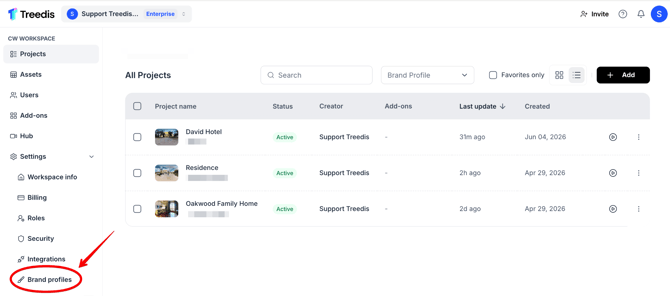
To access your Brand Profiles, log into your Treedis workspace and navigate to **Settings** \> **Brand Profiles** from the left sidebar.
#### **Creating a Brand Profile**
To create a new Brand Profile: click **+ Brand Profile** in the upper-right corner.
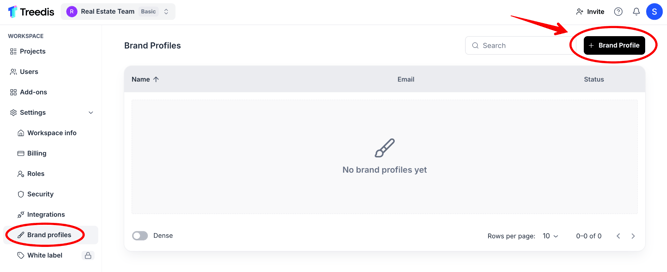
This opens the configuration page where you can add the required information for the Brand Profile - overall settings and **contact information**:
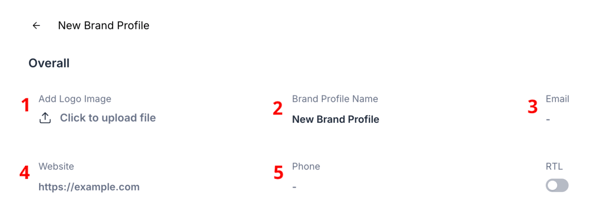
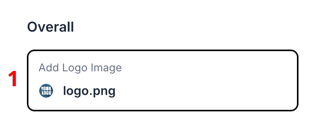
1\. **Logo Image** - upload a logo that represents the brand.
2\. **Brand Profile Name** - enter the internal name for the profile.
3\. **Email** - input the contact email address.
4\. **Website** - add the company's website URL. Once added, visitors can click the brand logo inside the virtual tour to visit this website.
5\. **Phone** - add a contact number for leads collected through tours.
Providing a profile name and/or email address is required to create the **Brand Profile.**
#### **Navigating the Brand Profiles Dashboard**
Once a Brand Profile is created, you will find a data table inside the Brand Profiles tab listing all profiles available in your workspace. The table consists of 3 main columns:
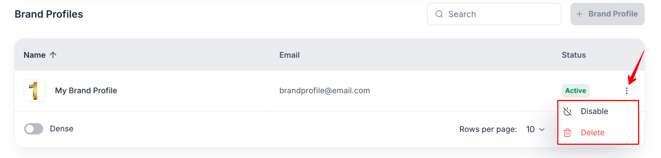
**Name** - displays the Brand Profile name along with its associated logo.
**Email** - shows the associated email address.
**Status** - indicates whether the Brand Profile is currently active or inactive.
**Three-Dot Action Menu** on the right side of each row provides options to **Disable** or **Delete** the brand profile.
#### **Configuring Brand Profile Logo and Colors**
Using a Brand Profile, you can control how logo is displayed inside a tour in three distinct ways:
1\. **Upload a logo** to the Brand Profile. This logo will be displayed in the **upper-left corner** **of the public tour**.
2\. Enable **Brand Identity** toggleif you want the brand profile's logo to **display** **throughout the entire public tour**. When enabled, the brand profile logo overrides the default Treedis logo or your White Label logo.
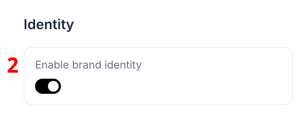
3\. Once the **Brand Identity toggle is enabled**, you can also select **primary** and **secondary colors** for the brand profile.These colors override the default Treedis color scheme and are applied to the tour interface elements, buttons on the bottom panel, and the asset page (tour landing page).

#### **Additional Brand Profile Settings**
In addition to visual branding, Brand Profiles include several advanced settings that support different platform features.


1\. **Horizontal Logo** - enlarges the logo size displayed inside the virtual tour. The logo display increases from 100×100 px to 200×200 px.
2\. **Vimeo Token** - paste an existing Vimeo API token or click the 'Generate' button to create token. This setting is used for Vimeo videos embedded through Media feature.
3\. **RTL Toggle** - enables right-to-left text alignment for languages that require it.
4\. **Hub minutes** - allocates minutes within the Hub ecosystem. *Note: available only for accounts that previously had access to the legacy Hub feature.*
5\. **Watermark image** - Uploads a watermark overlay displayed on the asset page gallery (tour landing page).
Use the following fields to integrate the brand's social media channels and tracking systems for unified marketing and analytics workflows.
**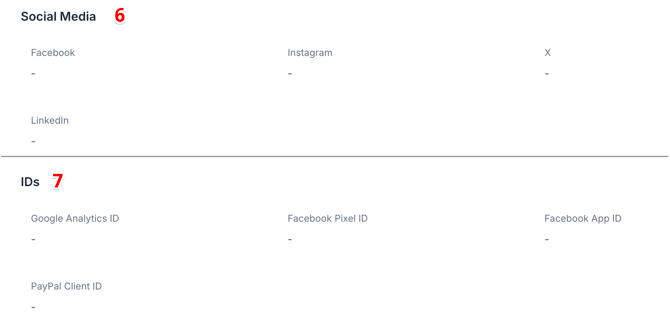**
6\. **Social Media** - dedicated input fields for Facebook, Instagram, X (formerly Twitter), and LinkedIn to connect a brand's online presence to the asset page (tour landing page).
7\. **Tracking and Payment Fields include:**
- *Google Analytics ID:* tracks tour analytics and visitor activity through Google Analytics account.
- *Facebook Pixel ID & Facebook App ID:*supports retargeting campaigns and Facebook integrations based on tour activity.
- *PayPal Client ID:* enables payment and checkout functionality within V-Commerce tours.
**Important:** All of the options listed above require the **Brand Profile to be assigned to a tour**. Click here to learn how to assign a brand profile to a space.
#### **Inviting a Brand Profile to Collaborate on the Tour**
A Brand Profile itself does not have a direct login option, but it can be invited to collaborate on a tour if needed. While logged into your workspace, click the **Invite** button in the top-right corner.

This opens the standard invitation workflow, which follows the same procedure used to invite a regular user (new member) to your workspace. [*Review this User Management article for a step-by-step instructions of the invitation process.*](https://info.treedis.com/help.center/user-management-how-to-invite-users-to-the-workspace)
#### **Brand Profile Limits per Subscription Plan**
The number of Brand Profiles available within a workspace depends on its subscription plan.
| **Plan Tier** | **Brand Profile Limit** |
| --- | --- |
| Free | 1 Brand profile |
| Growth | 25 Brand profiles |
| Business | 100 Brand profiles |
| Premium | 250 Brand profiles |
| Enterprise | Custom number of Brand profiles |
**Note:** If your workspace reaches its brand profile limit and additional profiles are required, upgrading to a higher subscription tier will be necessary.
---
If you have any questions or need assistance with the settings, please contact us at [support@treedis.com](mailto:support@treedis.com)
- [Workspace NEW](https://info.treedis.com/help.center/workspace-new)
- [3D Editor](https://info.treedis.com/help.center/3d-editor#main-content)
- [Interface](https://info.treedis.com/help.center/3d-editor#interface)
- [Intro Screen](https://info.treedis.com/help.center/3d-editor#intro-screen)
- [3D Scans](https://info.treedis.com/help.center/3d-editor#3d-scans)
- [Burger Menu](https://info.treedis.com/help.center/3d-editor#burger-menu)
- [Highlight Reel](https://info.treedis.com/help.center/3d-editor#highlight-reel)
- [Map](https://info.treedis.com/help.center/3d-editor#map)
- [Panorama](https://info.treedis.com/help.center/3d-editor#panorama)
- [Tags](https://info.treedis.com/help.center/3d-editor#tags)
- [Polygons](https://info.treedis.com/help.center/3d-editor#polygons)
- [Measurements Feature](https://info.treedis.com/help.center/3d-editor#measurements-feature)
- [Media / Vimeo / Green Screen](https://info.treedis.com/help.center/3d-editor#media-vimeo-green-screen)
- [Giphy / Sketchfab](https://info.treedis.com/help.center/3d-editor#giphy-sketchfab)
- [Virtual Staging / Avatars](https://info.treedis.com/help.center/3d-editor#virtual-staging-avatars)
- [FAQ](https://info.treedis.com/help.center/faq)
- [Manage](https://info.treedis.com/help.center/manage)
- [IoT Integrations](https://info.treedis.com/help.center/iot-integrations)
- [Analytics](https://info.treedis.com/help.center/analytics)
- [Treedis AI](https://info.treedis.com/help.center/treedis-ai)
- [Work Requests (Notes)](https://info.treedis.com/help.center/work-requests-notes)
- [White Label](https://info.treedis.com/help.center/white-label)
- [Flows](https://info.treedis.com/help.center/flows)
- [Navigation](https://info.treedis.com/help.center/navigation)
- [Experience Creator \*](https://info.treedis.com/help.center/experience-creator)
- [VR (Virtual Reality)](https://info.treedis.com/help.center/vr-virtual-reality)
- [AR (Augmented Reality)](https://info.treedis.com/help.center/ar-augmented-reality)
- [HUB \*](https://info.treedis.com/help.center/hub)
- [Billing & Subscription](https://info.treedis.com/help.center/billing-subscription)
- [V-Commerce](https://info.treedis.com/help.center/v-commerce)
[%20(1).png?width=16&height=24&name=Group%2039638%20(1)%20(1).png "Chill listening crop-3")](https://www.treedis.com)
treedis.com Help Center
Copyright © 2025, treedis.com