Notes is a groundbreaking Treedis feature that enables seamless collaboration with your team directly within a 3D space, whether they are onsite or accessing it remotely. This is achieved through Notes compatibility with both Web and AR modes.
While Notes look like tags, they also provide a window for communication, allowing you to exchange comments about the tour with your team and partners. These conversations can range from editing suggestions to troubleshooting procedures between frontline workers and remote supervisors, enhancing communication and efficiency.
Notes on Web
Notes can be activated either by the workspace Owner or by a User who has been added to the tour for collaboration and has the required role permissions to work with Notes.
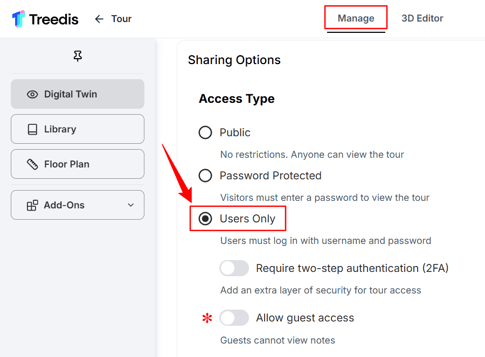
Important: To access Notes on the web, the "Users Only" access option must be enabled in the Manage section → Sharing Options. Without this setting enabled, the Notes button will not appear inside the public space.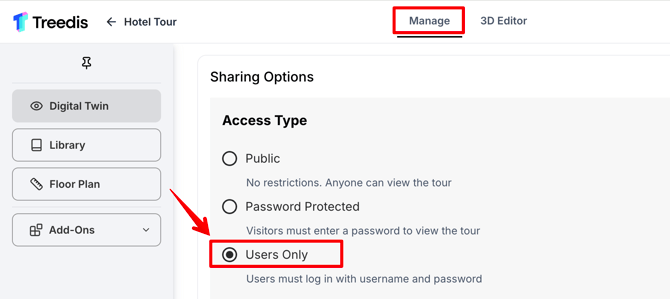
How to Activate Notes
To activate Notes, open the tour and navigate to the 3D Editor. From the left sidebar, select Notes (1) → General tab (2) → switch the toggle to enable Notes (3):
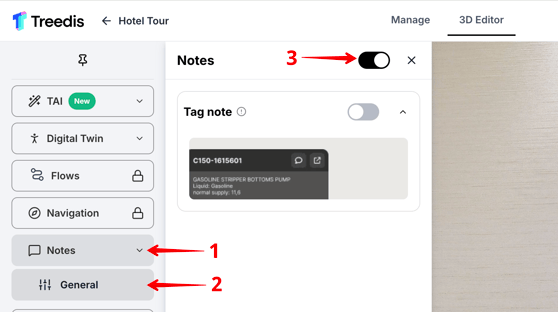
Once Notes are activated (and "Users Only" access is enabled), the corresponding icon will appear in the bottom-left corner of the tour.
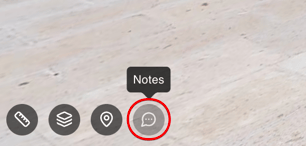
When you click the Notes icon, the relevant panel will open on the right side of the screen. To start communicating through Notes, click the “+ Add Note” button.
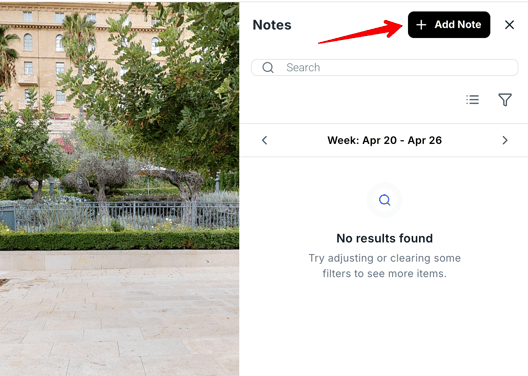
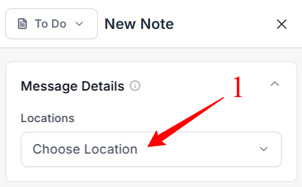
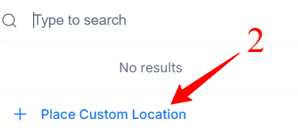
Decide where you want to place the Note within the tour by choosing the location (1) or manually placing the custom location (2).
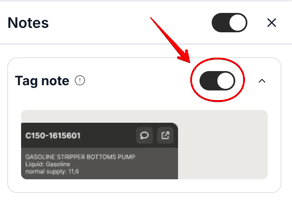
Alternatively, you can enable the "Tag note" feature to use an existing tag instead of creating a new one specifically for Notes.
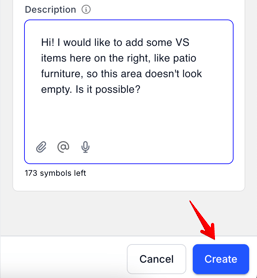
Once the Note location is selected (1), add a title and a description to the Note (2).
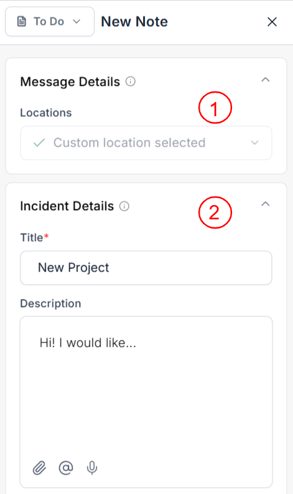
When the Note is ready, click the Create button to save it.
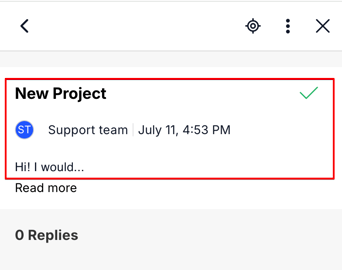
Supported Content and Attachments
The following file types and formats are supported for Notes comments:
- Text messages: Up to 500 symbols per description and up to 300 symbols per comment.
- Voice messages: There is no time limit for audio files, however, we recommend keeping them concise. The audio file size must not exceed 20 MB.
- File attachments: PDF, JPG, PNG; maximum of 10 images per comment.
- Video attachments: MP4 format. The total size of the files should not exceed the 20 MB limit.
Managing Notes
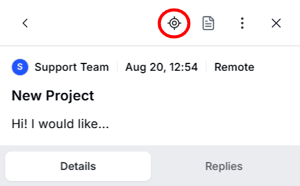
Use this option to fly to the Note’s location in the tour.
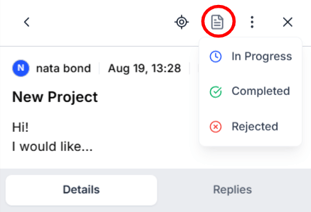
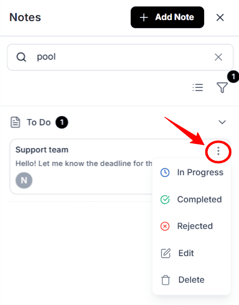
By default, the Note is created in the To Do status. You can change it to In Progress, Completed, or Rejected status using this option.
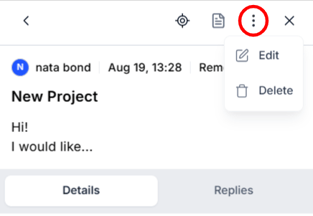
Click the 3 dots if you want to edit or delete the Notes comment.
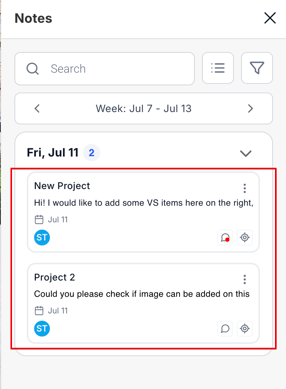
You can create as many Notes as you want. Each Note will be displayed as a separate Note group.
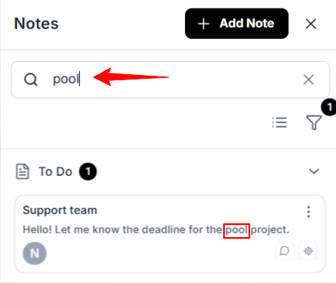
Use the search bar to navigate between existing Notes. Each Note can be edited or deleted, and its status can be changed by the tour owner or users who have been added to the tour and have Notes permissions assigned to their role.
Access Settings for Notes
Open the tour Manage section → Sharing Options → configure the desired access settings for a tour with the active Notes feature:
-
If a tour with active Notes is shared as a Public link, the Notes feature will not be visible to viewers on the Web.
- If a tour with active Notes is shared with “Users Only” access, the Notes feature will be accessible only to added users.
- If the tour owner additionally enables the “Allow Guests” mode, then guest visitors (who are not actual users) will be able to enter the public tour without logging in. However, guests will not be able to view or access the Notes.
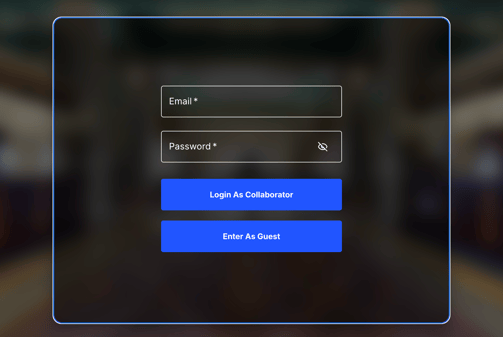
When opening the tour link, visitors will see an introductory screen allowing them to enter either as a User or as a Guest.
- Users should log in using the same credentials associated with their Treedis account.
- Guests do not need to log in, but select an option "Enter as Guest".
Notes Notifications
The tour owner and users can communicate through Notes without a need to be present in the tour simultaneously. Comments added to Notes become visible immediately to all participants.
If the Notes panel is collapsed in the tour, notifications about new Notes will display next to the Notes icon at the bottom left corner.

-
If users log out of the space, they will see the new comments once they re-enter the public tour link.
- If users were tagged in Notes comment, they will receive the email notification informing them that they were mentioned. It will also be displayed in their Treedis account, in the Notifications section.
Notes in AR
To access Notes in Augmented Reality mode, follow the same setup process as for the web version (activate the Notes feature and enable collaborator access). Additionally, ensure that AR is also activated for the same space. Click here to view the AR setup instructions.
After setting up the space, log in to the Treedis AR app as a collaborator using your Treedis account credentials. Once logged in, you will see a menu at the bottom of the screen with the Notes feature pinned. Click on it to start leaving notes directly in the field.


The Notes will automatically sync with the web version, enhancing communication and collaboration among team members.

If you have further questions or need assistance with the settings, please contact us at support@treedis.com