Notes is a groundbreaking Treedis feature that enables seamless collaboration with your team directly within a 3D space, whether they are onsite or accessing it remotely. This is achieved through Notes compatibility with both Web and AR modes.
While Notes look like tags, they also provide a window for communication, allowing you to exchange comments about the tour with your team and partners. These conversations can range from editing suggestions to troubleshooting procedures between frontline workers and remote supervisors, enhancing communication and efficiency.
Notes on Web
Notes can be activated either by the workspace Owner or by a User who was added to the tour for collaboration.
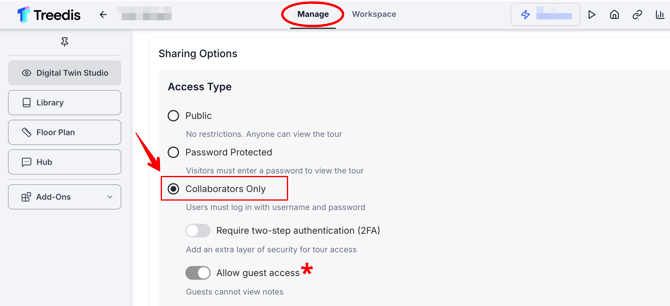
Important: To access Notes on the web, the "Users Only" access option must be enabled in the Manage section > Sharing Options. Without this setting enabled, the Notes button will not appear inside the public space.
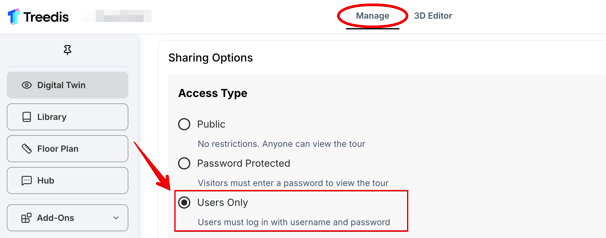
How to Activate Notes
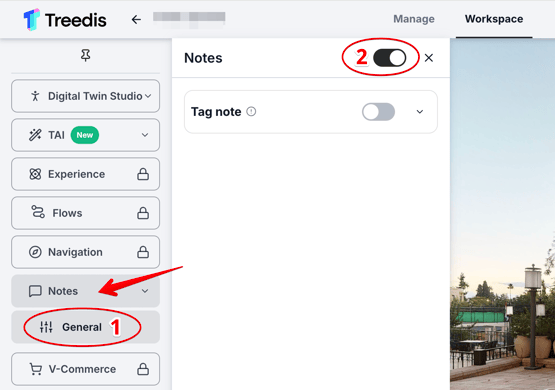
To activate Notes, open the tour and navigate to the 3D Editor. From the left sidebar, select Notes > once in the General tab (1), switch the toggle to enable Notes (2):
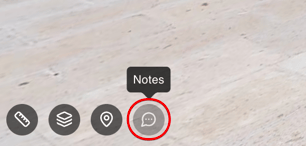
Once Notes are activated (and "Users Only" access is enabled), the corresponding icon will appear in the bottom-left corner of the tour.
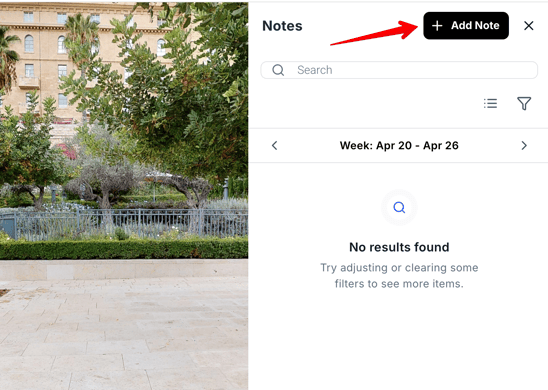
When you click the Notes icon, the relevant panel will open on the right side of the screen. To start communicating through Notes, click the “+ Add Note” button.
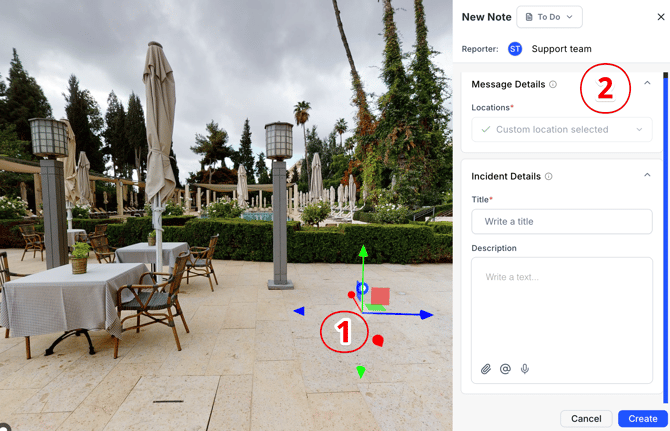
Decide where you want to place the Note within the tour. Once the tag is placed (1), you will be able to select a Note location if the tag already exists, add a title and a comment to the Note (2).
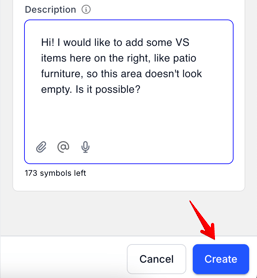
When the Note is ready, click the Create button to save it.
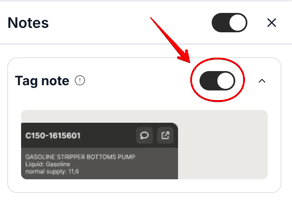
Alternatively, you can enable the "Tag note" feature to use an existing tag instead of creating a new one specifically for Notes.
Supported Content and Attachments
The following file types and formats are supported for Notes comments:
- Text messages: Up to 300 symbols per comment.
- Voice messages: No time limit, however, it is recommended to keep them concise.
- File attachments: PDF, JPG, PNG; maximum of 10 images per comment; image dimensions should not exceed 2048 pixels for width and height.
- Video attachments: MP4 format; maximum file size of 20 MB per video.
Important! In order to publish a comment with an attachment, you need to type in some text message next to it, without text it won't allow to send a comment.
Managing Notes
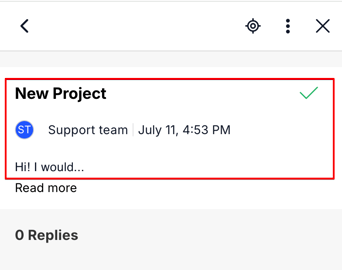
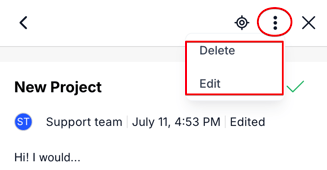
Click on 3 dots if you want to edit or delete the Notes comment.
You can create as many Notes as you want, each will be separated as new Note group.
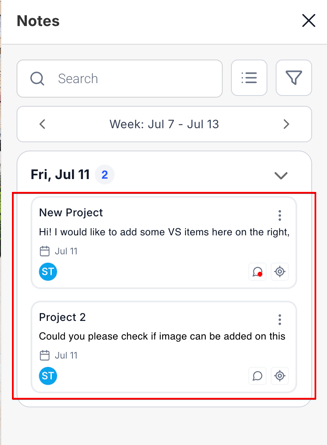
Use a search bar to navigate between the existing Notes. Each Note allows you to edit the Note (tag) position, delete the Note or set it to 'complete' with the rights of a collaborator or tour owner.


When a Note is marked as "Complete", you can use Filter to find the needed category in the list of Notes. The difference between 'active' and 'completed' Notes is that the latter will be displaying transparent in the list. Completed Notes can be activated back. Deleted Notes can't be restored.


Access Settings for Notes
Open the tour Manage section > Sharing Options to configure the desired access settings for a tour with the active Notes feature:
-
If a tour with active Notes is shared as a Public link, the Notes feature will not be visible to viewers on the Web.
- If a tour with active Notes is shared with “Collaborators Only” access, the Notes feature will be accessible only to collaborators.
- If the tour owner additionally enables the “Allow Guests” mode, then guest visitors (who are not actual collaborators) will be able to enter the public tour without logging in. However, guests will not be able to view or access the Notes.
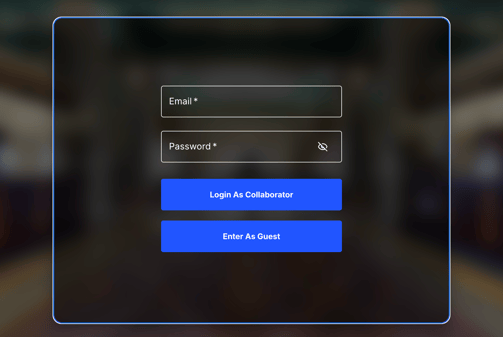
When opening the tour link, visitors will see an introductory screen allowing them to enter either as a Collaborator or as a Guest.
- Collaborators should log in using the same credentials associated with their Treedis account.
- Guests do not need to log in, but select an option "Enter as Guest".
Notes Notifications
The tour owner and collaborators can communicate through Notes without a need to be present in the tour simultaneously. Comments added to Notes become visible immediately to all participants.
If the Notes panel is collapsed in the tour, notifications about new Notes will display next to the Notes icon at the bottom left corner.

-
If collaborators log out of the space, they will see the new comments once they re-enter the public tour link.
- If collaborators were tagged in Notes comment, they will receive the email notification informing them that they were mentioned.
Notes in AR
To access Notes in Augmented Reality mode, follow the same setup process as for the web version (activate the Notes feature and enable collaborator access). Additionally, ensure that AR is also activated for the same space. Click here to view the AR setup instructions.
After setting up the space, log in to the Treedis AR app as a collaborator using your Treedis account credentials. Once logged in, you will see a menu at the bottom of the screen with the Notes feature pinned. Click on it to start leaving notes directly in the field.


The Notes will automatically sync with the web version, enhancing communication and collaboration among team members.

If you have further questions or need assistance with the settings, please contact us at support@treedis.com