---
title: TAI Flows (Beta)
description: TAI Flows (Beta)
---
[Skip to content](https://info.treedis.com/help.center/tai-flows-beta#main-content)
English
Show submenu for translations
Open main navigation
Close main navigation
- English
Show submenu for translations
- [Go to treedis.com](https://www.treedis.com/)
[Go to treedis.com](https://www.treedis.com/)
This is a search field with an auto-suggest feature attached.
- There are no suggestions because the search field is empty.
1. [Help Center](https://info.treedis.com/help.center)
2. [Flows](https://info.treedis.com/help.center/flows)
# TAI Flows (Beta)
We have launched **TAI Flows in beta** - a new way to start building a Flow that takes the heaviest lift off your plate: the storyboarding.
Until now, every Flow began with a blank canvas. You had to design the sequence of steps, work out the logic, and write every title and description before you could even start connecting things to your digital twin. TAI Flows changes the starting line. Instead of building the structure from scratch, TAI drafts it for you - steps, logic, titles, and descriptions - so you can focus on the parts that genuinely require your judgement: anchoring each step to the right position in the space and layering in any conditions you want.
To be clear: TAI Flows doesn't build the entire Flow end-to-end. It handles the structural authoring so you can skip ahead to the spatial and conditional design.
#### **Two Ways to Generate a Flow Structure**
TAI Flows works from source material you already have - or can create in a couple of minutes:
- **From a PDF**. If your procedure is already documented - an SOP, a maintenance checklist, a training manual - upload the document and TAI will extract the steps and logic directly from it.
- **From a video**. Upload a video walkthrough and TAI will pull out the relevant steps and generate the logic to match. The video doesn't need to be polished. A quick phone recording of you walking through the facility and narrating what needs to happen - the kind of clip you would send to a colleague for a quick update - works just as well as a fully produced training video. When you use a video, TAI will also generate a **thumbnail for each step** from the footage, giving your Flow immediate visual context.
**Note:** You can also use both a video and a PDF as the source material.
### **How it Works**
1. Navigate to the 3D Editor (workspace) for your space and enable the Flows addon.
**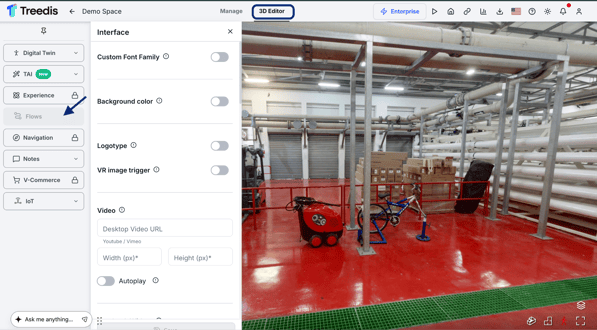**
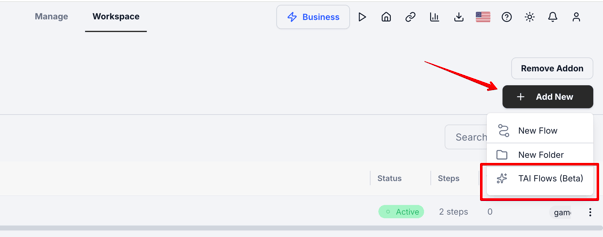
2. When creating a new Flow, select **TAI Flows** as your starting option.
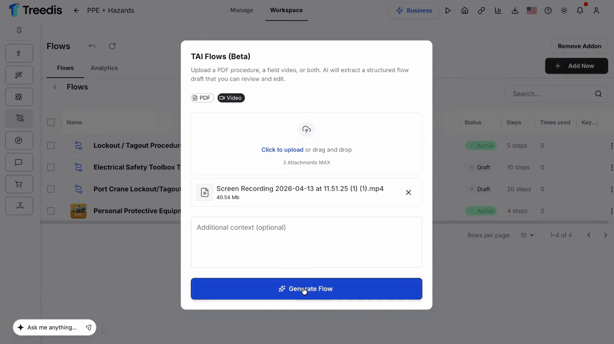
3. Upload your PDF and/or video and click **Generate Flow.**
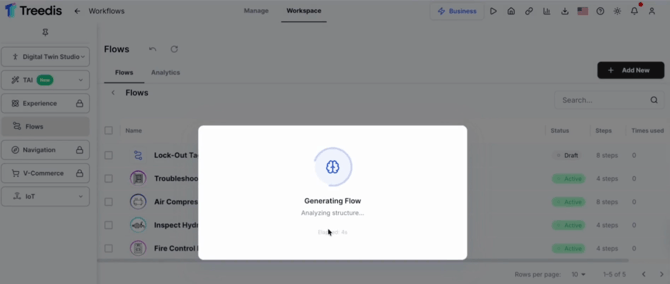
4. TAI analyses the source material and generates a proposed Flow structure. You will see a preview before anything is committed.
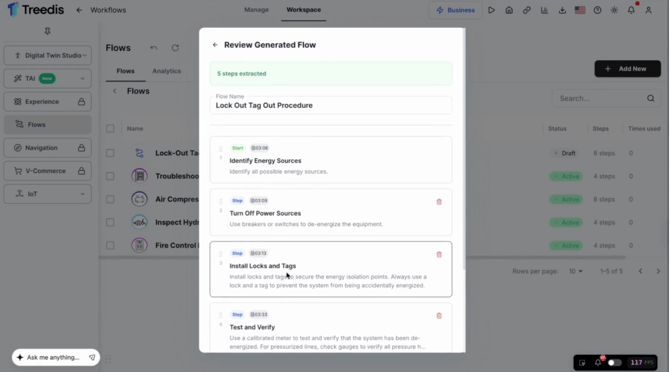
5. Once you confirm, TAI creates the Flow as a **draft** - nothing goes live until you choose to publish. No surprises, no changes to existing experiences without your say-so.
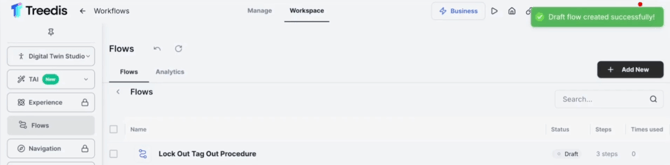
6. You'll find each step pre-created, connected, and populated with a title and description. Video-sourced Flows also have auto-generated thumbnails per step.
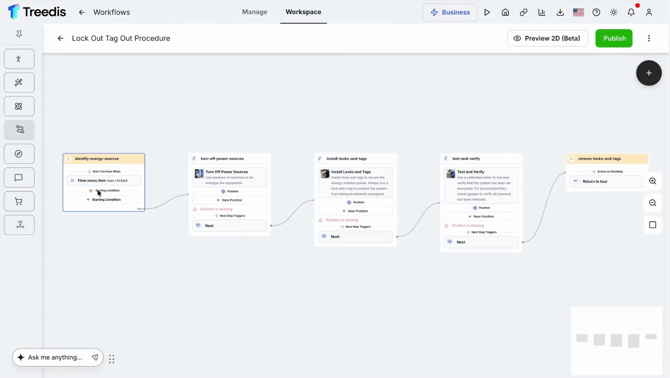
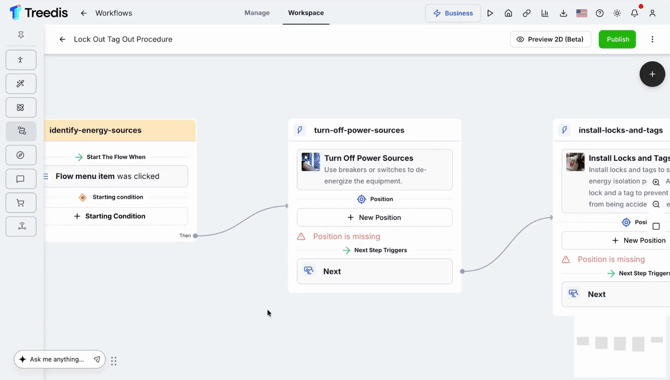
7. From here, the draft behaves like any other Flow. Connect each step to the right position in your digital twin, add conditions if you want branching or decision logic, and edit, reorder, or remove anything TAI generated. Everything available in standard Flows is available here ([follow the Flows Article here](https://info.treedis.com/help.center/flows-article) for a deep dive on what's possible).
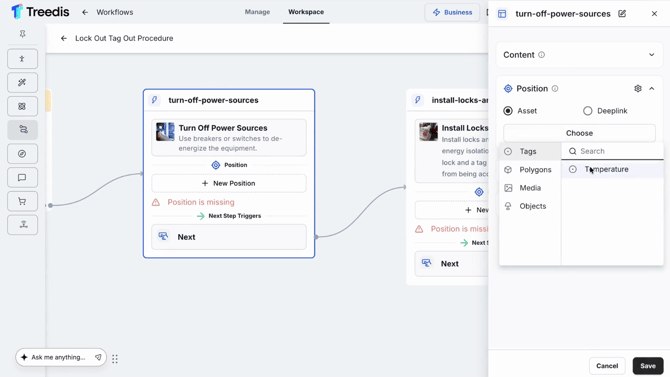
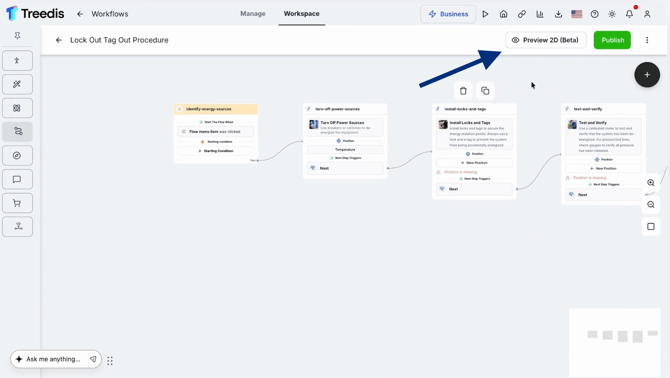
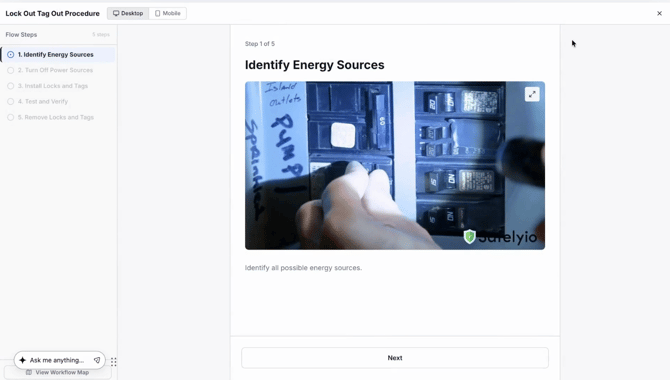
8. **Preview in 2D** gives you a top-down overview of the entire Flow at a glance - how the steps sit in relation to each other and where the sequence moves. It's a fast way to sense-check the structure and spot gaps before you publish.
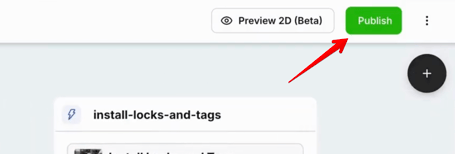
9. Click the **Publish** button when you are ready to make Flows live.
---
If you have further questions or need assistance with the settings, please contact us at [support@treedis.com](mailto:support@treedis.com)
- [Workspace NEW](https://info.treedis.com/help.center/workspace-new)
- [3D Editor](https://info.treedis.com/help.center/3d-editor#main-content)
- [Interface](https://info.treedis.com/help.center/3d-editor#interface)
- [Intro Screen](https://info.treedis.com/help.center/3d-editor#intro-screen)
- [3D Scans](https://info.treedis.com/help.center/3d-editor#3d-scans)
- [Burger Menu](https://info.treedis.com/help.center/3d-editor#burger-menu)
- [Highlight Reel](https://info.treedis.com/help.center/3d-editor#highlight-reel)
- [Map](https://info.treedis.com/help.center/3d-editor#map)
- [Panorama](https://info.treedis.com/help.center/3d-editor#panorama)
- [Tags](https://info.treedis.com/help.center/3d-editor#tags)
- [Polygons](https://info.treedis.com/help.center/3d-editor#polygons)
- [Measurements Feature](https://info.treedis.com/help.center/3d-editor#measurements-feature)
- [Media / Vimeo / Green Screen](https://info.treedis.com/help.center/3d-editor#media-vimeo-green-screen)
- [Giphy / Sketchfab](https://info.treedis.com/help.center/3d-editor#giphy-sketchfab)
- [Virtual Staging / Avatars](https://info.treedis.com/help.center/3d-editor#virtual-staging-avatars)
- [FAQ](https://info.treedis.com/help.center/faq)
- [Manage](https://info.treedis.com/help.center/manage)
- [IoT Integrations](https://info.treedis.com/help.center/iot-integrations)
- [Analytics](https://info.treedis.com/help.center/analytics)
- [Treedis AI](https://info.treedis.com/help.center/treedis-ai)
- [Work Requests (Notes)](https://info.treedis.com/help.center/work-requests-notes)
- [White Label](https://info.treedis.com/help.center/white-label)
- [Flows](https://info.treedis.com/help.center/flows)
- [Navigation](https://info.treedis.com/help.center/navigation)
- [Experience Creator \*](https://info.treedis.com/help.center/experience-creator)
- [VR (Virtual Reality)](https://info.treedis.com/help.center/vr-virtual-reality)
- [AR (Augmented Reality)](https://info.treedis.com/help.center/ar-augmented-reality)
- [HUB \*](https://info.treedis.com/help.center/hub)
- [Billing & Subscription](https://info.treedis.com/help.center/billing-subscription)
- [V-Commerce](https://info.treedis.com/help.center/v-commerce)
[%20(1).png?width=16&height=24&name=Group%2039638%20(1)%20(1).png "Chill listening crop-3")](https://www.treedis.com)
treedis.com Help Center
Copyright © 2025, treedis.com