Big news for Treedis users - we are introducing Web-based AR navigation.
Getting started with AR navigation is now easier than ever - there is no need to download or log in to any app to use navigation. You can now access live AR directions straight from the browser simply by scanning a tour's QR code.
Note: At the moment, WebAR is supported on Apple devices only (Safari browser is required). Support for Android devices is currently under development.
Check out the video below to see how easily it can be launched on a device.
How to Prepare the Tour for WebAR Navigation
To use Web-based AR navigation, your tour needs to be prepared in the same way as for standard AR capabilities (you can also find the detailed activation steps in this article).
1. Activate the required AR and Navigation add-ons for your Treedis tour.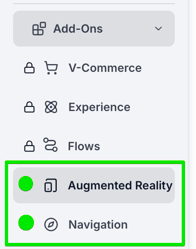
2. Purchase the MatterPak in Matterport under the Add-ons tab, then connect your Treedis account via Matterport OAuth to complete the tour asset conversion.
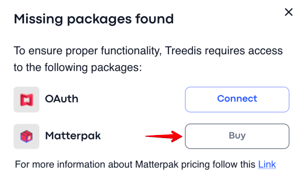
3. Once the AR conversion is complete and the QR code is available in the Augmented Reality section (usually takes up to 24 hours), simply scan the QR code to open the tour in the Safari browser. That’s it.
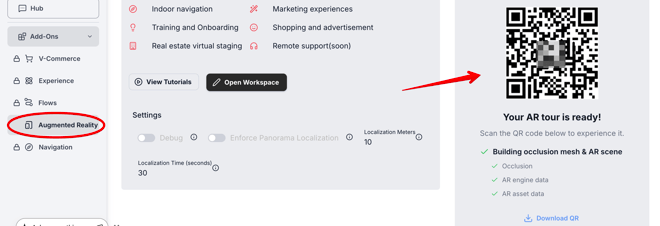
How to Open a Tour in the Browser
WebAR is especially useful for public spaces, where users don't need to log in and where a simple scan-and-go QR code experience is preferred. All the users need to do is to open the tour in Safari browser. There are 2 ways to do it:
-
Option 1: Use the device camera to scan the tour's QR code. This will automatically open the tour in native iOS browser.
-
Option 2: Manually paste the tour’s URL into Safari browser. To do this, the regular tour URL should be modified by changing 'tour' to 'webxr' part, as shown below:
Regular link: http://my.treedis.com/tour/exhibition
WebAR link: http://my.treedis.com/webxr/exhibition
Once the tour is opened in Safari, simply tap the OPEN button in the banner at the top of the screen. This will launch the AR navigation experience.
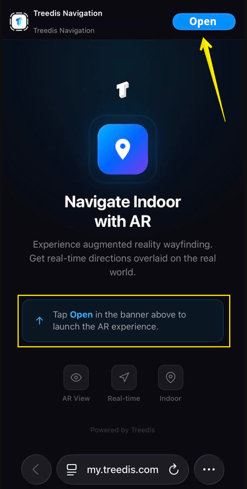
After entering the tour, move your camera slowly to track your position and start the navigation.
Additional Information
- WebAR is supported on Apple devices running iOS 26.1 (this will be updated in the future to extend support to earlier versions, starting from iOS 17.0).
- WebAR works for navigation purposes only.
- Additional features' display (Tags, Media, Virtual Staging objects, and Flows guidance) is currently under development and will be introduced in future updates. Support for Android devices is also in progress.
If you have further questions or need assistance with the settings, please contact us at support@treedis.com