White Label (WL) solution provides the capability to entirely eliminate any signs of Treedis within your account and tours. It provides you with an opportunity to replace the Treedis logo, customize the domain address (URL), and select your preferred color scheme, thereby enabling you to present the tour as your own, allowing for a seamless pitch to your clients and partners.
Note: The White Label solution is available for purchase exclusively on the Enterprise plan. Once enabled, the White Label configuration applies across all tours within that specific workspace.
White Label: Features
White Label solution allows you to gain full control over the tour and change the links (domain), logo and colors.
1. Domain
The default domain address my.treedis.com will be replaced with your custom domain, ensuring viewers see no mention of Treedis in your tours.

2. Logo
The Treedis logo in the burger menu and throughout the tour interface will be replaced with your own company logo.


3. Colors
The default Treedis colors (black and blue) will be updated to match your brand palette, allowing you to fully customize your workspace and virtual tours.
White Label: Activation
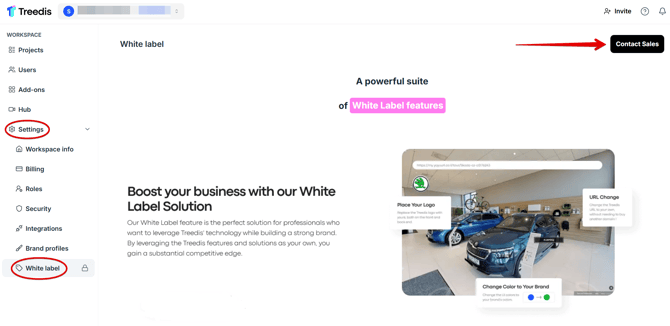
To activate the White Label, open your Workspace > Settings > select White Label from the left sidebar > and click Contact Sales in the top-right corner.
White Label: Configuration
Once your White Label solution is active, you will see the configuration options divided into four main sections:
- Domain Settings
- Identity
- Links
- Custom Login Design
Domain Settings

-
Public Domain - add your subdomain+domain (subdomain is needed for us to register it on our side and differentiate your website domain from the tours):
Examples: my.domain.com, 3d.tour.com, wow.imagine.be, etc.
-
Whitelabel Email - we register the email so that you can collect leads from your tours.
-
Website - when the visitors click your custom logo inside the tour, they will be redirected to the website URL specified in this setting.
Once you have completed the domain settings and Whitelabel email setup, our team will receive a request to register your domain. You can continue editing your White Label settings during the registration process.
Identity
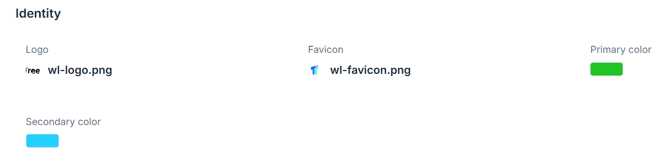
- Add your Logo to replace the Treedis logo.
- Add your Favicon to replace the Treedis favicon.
- Pick your own Colors to replace the Treedis colors.
Links
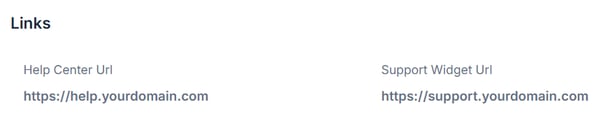
Additionally, you can add a Help Center URL to direct to your own Help Center documentation or website.
And a Support Widget URL - a link that will open when tour visitors click the support widget or chat button.
Login Page Design
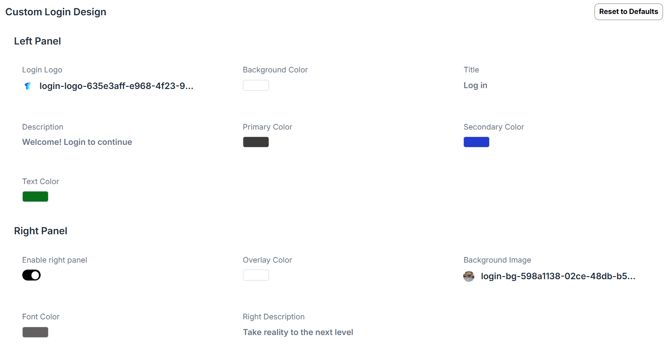
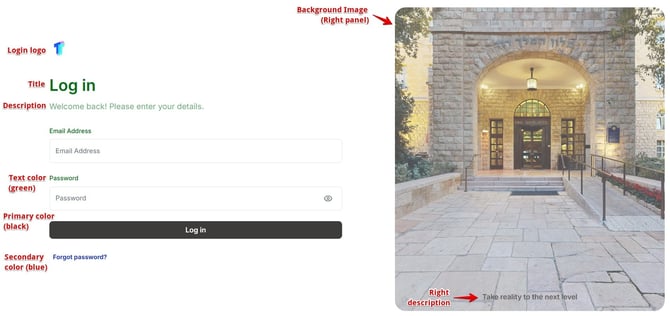
The Custom Login Design settings allow you to fully personalize the appearance of your login screen, including colors, text, and optional right-side visuals. Below is an overview of each configurable section:
Left Panel
- Login Logo - the logo shown in the top-left corner of the login page.
- Background Color - the background color of the login page.
- Title - the main heading on the login form, such as "Log in".
- Description - a short message displayed below the title, such as "Welcome! Login to continue".
- Primary Color - the color of the 'Login' button.
- Secondary Color - the color of the links, such as Forgot password?
- Text Color - the color of text labels, such as Email Address and Password.
Right Panel
-
Switch Right panel toggle on or off to show or hide the right-side visual block.
-
Overlay Color - select an overlay color that appears on top of the background image for styling or improved readability.
-
Background Image - upload a background image for the right side.
-
Font Color - specify the text color used exclusively for the description inside the right-side area.
-
Right Description - add a description or additional text that will appear within the right panel.
Here is how the customization will look like with the mentioned settings:
If you have further questions or need assistance with the settings, please contact us at support@treedis.com